


Commented MONTAGEM? Here is the link and the step-by-step. OpenMontage is open-source software that turns a coding assistant on your computer into a video production workflow. Describe a video in ordinary language; it can research, draft the script, source footage or images, narrate, add music and captions, and edit. Think of a history explainer for YouTube or a product clip for Instagram. It is not a one-click website or phone app. You supervise what the assistant does.
Start here, even if you do not code
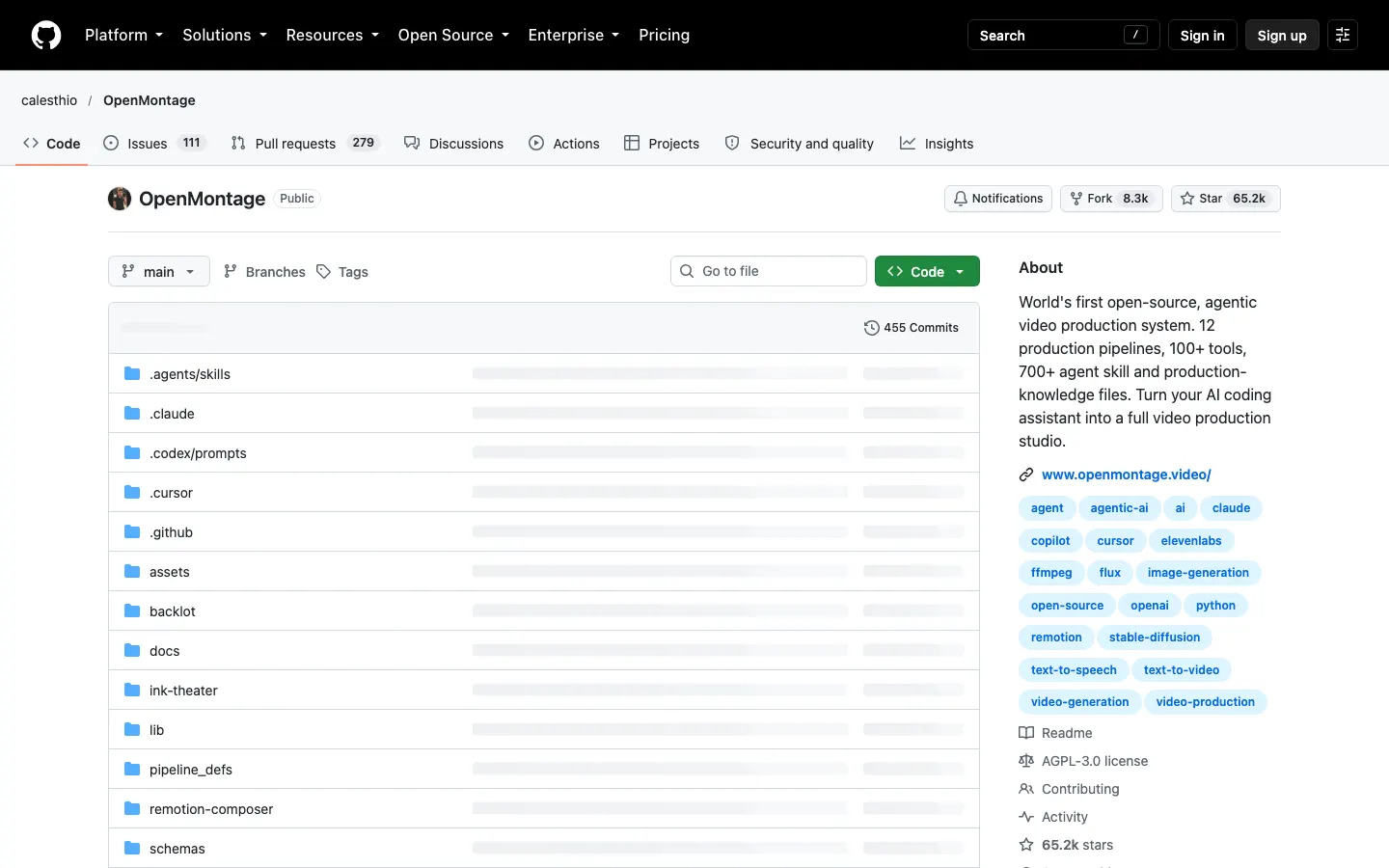
- Open the official OpenMontage repository. Watch its examples and look at the Backlot screenshots first. These are project demos, not results we produced.
- To make your own video, use a computer with Git, Python 3.10+, FFmpeg, Node.js 18+ and a coding assistant that can run commands, such as Claude Code, Codex or Cursor. If terminals are unfamiliar, ask someone you trust for help. There is no hosted OpenMontage editor that skips setup.
- Open your terminal and copy one command at a time. These are documented steps, not tested by us. Windows users without
makeshould follow the PowerShell alternative below.
git clone https://github.com/calesthio/OpenMontage.gitcd OpenMontagemake setup- Open the OpenMontage folder in your coding assistant and try this example request, not tested by us. Review its proposed plan and estimated provider charges before approving any paid generation:
Make a short video about Brazilian history in Brazilian Portuguese. Research and cite sources for my review. Use appropriately licensed archive footage and offline Piper pt_BR narration if available; otherwise stop and tell me. Show the script, scenes, media licenses and cost estimate before spending or rendering. Do not publish.Your assistant interprets the Portuguese brief; OpenMontage is not a separate chat app. Free Brazilian Portuguese narration is not guaranteed by default: check whether the Piper voice is installed and listen to a sample. Review captions, facts, rights and synchronization before publishing.
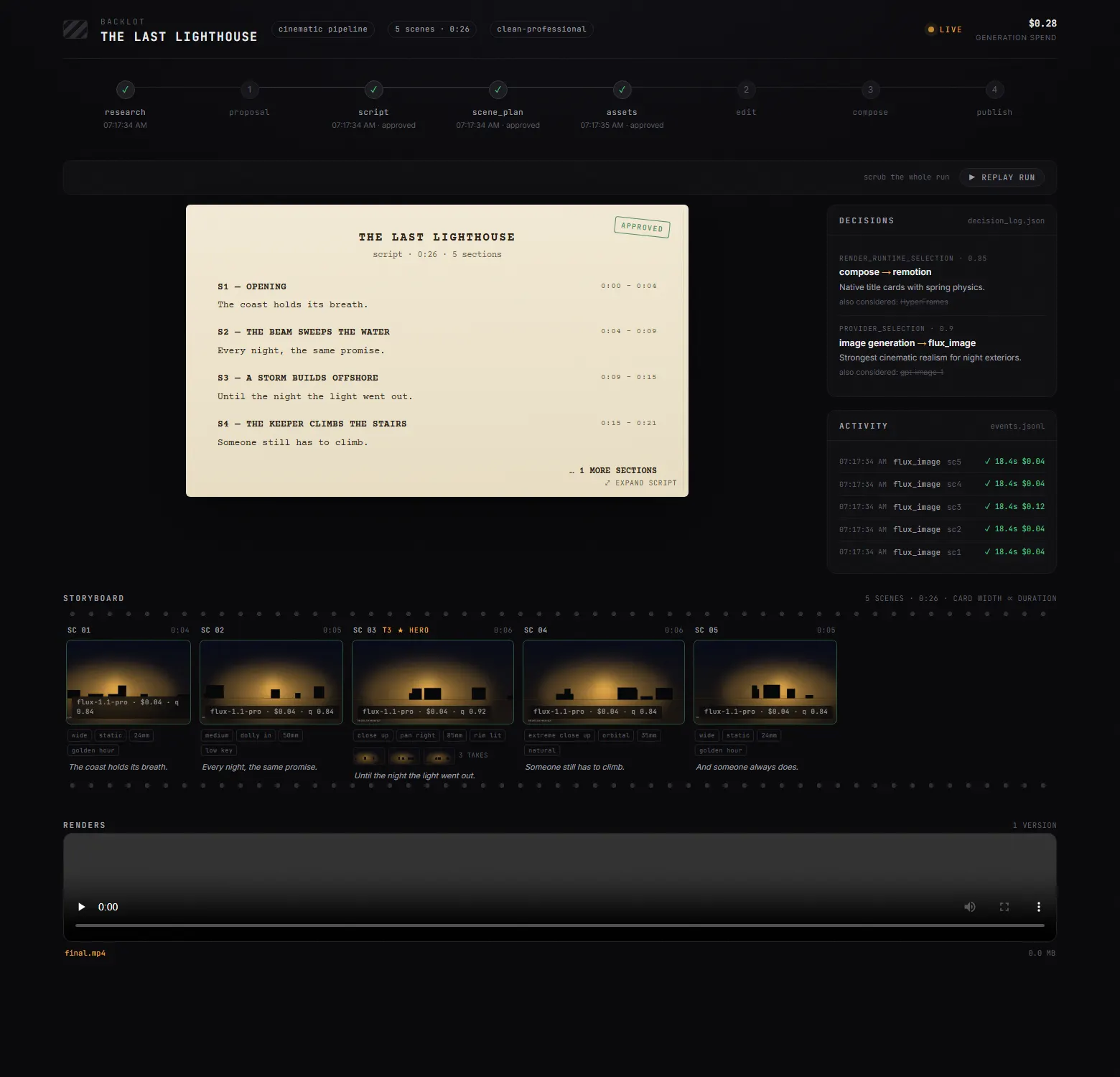
Review the scenes before rendering
Backlot is a local board displaying production stages, script, scenes and decisions. The documentation describes approval gates for proposal, script, scene plan, assets and publication. Still check each provider and its costs: a review gate is not a guarantee against mistakes. The image below is published by the project, not a production we ran.
The project reports US$1.33 in API charges for its animated short The Last Banana. The reel's “about R$6.70” was an approximate October 2026 currency conversion, not today's price or a quote for your video. Assistant subscriptions, exchange rates and taxes are separate. On 8 October 2026, GitHub showed 65,156 stars; popularity proves neither quality nor safety.
Going further: full installation and options
Official documentation steps, not tested by us. Consult the README quick start and full repository. Install Git, Python 3.10+, FFmpeg and Node.js 18+, plus a coding assistant that can read files and execute commands. Use the three commands above on macOS/Linux with make. On Windows PowerShell, after cloning and entering the folder, run the documented alternative one command at a time:
py -3 -m venv .venv.\.venv\Scripts\Activate.ps1python -m pip install -r requirements.txtcd remotion-composernpm installcd ..python -m pip install piper-ttsCopy-Item .env.example .envIf npm install fails with ERR_INVALID_ARG_TYPE, the README suggests npx --yes npm install. Piper setup may fail without stopping the rest of setup; verify narration before relying on it. Open Backlot from the repository with the Python environment active:
python -m backlot openConfiguration and choices: without paid API keys, try archive footage from Archive.org, NASA and Wikimedia Commons, or image-based video with Piper and Remotion; verify every media item's license. Pexels and Pixabay need their own free developer keys. Cloud AI video providers such as Kling or Veo may charge per generation. Consult the provider documentation, place optional keys in your local .env, never in chat or GitHub, and approve estimates before spending. The README describes a configurable default US$10 production cap; it is not a guarantee against external bills. Local AI video generation needs suitable NVIDIA hardware (make install-gpu in the README), untested here. HyperFrames specifies Node.js 22+ for its path despite the general Node.js 18+ prerequisite.
Quick FAQ and honest limits
Do I need to code? Not to describe a video, but setup involves a terminal and supervision of an assistant that executes code. Ask for help if needed.
Is it free? The code is AGPL-3.0 and some local or archival paths need no paid API key. Your assistant may have a subscription or usage cost; cloud video providers may charge. The US$1.33 example excludes the assistant.
Will it work on my computer or phone? The project documents macOS, Linux and a Windows alternative, depending on dependencies and your assistant. A phone alone cannot install or render it. Local AI video generation needs suitable hardware. We did not test installation on these systems.
Is it safe? Open source does not mean audited. Review commands, permissions and media rights. Never send client images or API keys without authorization; keep publication under your control.
What can go wrong? Research may be inaccurate; the voice may sound synthetic or lack PT-BR support; archive licenses can require attribution; setup and renders can fail or incur costs. We did not test the example prompt, voice, final price or resulting video. Sources and pending manual tests, checked 8 October 2026.
Comments
Have a question or something to add? Join the conversation.
No account needed. Select Sign in and choose a name to comment.
Loading the conversation…
Comment privacyCommenting guidelines