


Commented WHATSAPP? Here is the step by step. Kapso (with a K) is a service that gives your AI agent a WhatsApp number. It runs on the official WhatsApp API (Meta's own route for software to send and receive messages) and is an official “Meta Business Partner”. Inside you get a team inbox, workflows, AI agents, functions and broadcasts. It also has skills (manuals Claude Code reads) so you can ask in plain words: “build a flow that books appointments over WhatsApp”.
Five truths first:
- It is not “no cost at all”. Kapso's free plan has 2,000 messages per month. Meta's fees are separate (per delivered message). And Claude Code needs a paid Claude plan (Pro and up).
- The free ready-made number is a US (+1) number. You can use your own number (your own SIM, any country), subject to Meta's approvals.
- It is not “plug and play”. You need a Kapso account, the API key, Claude Code and Meta's approvals (display name, business verification, message templates, payment). The skills are in alpha.
- The agent you build on Kapso answers on WhatsApp, not Claude on its own. Claude Code helps you build it.
- The steps come from the official docs and WERE NOT TESTED BY US. The images are screenshots of Kapso's public pages.
| What | Detail |
|---|---|
| Name | Kapso (with a K). The video says “Capsu”; other videos say “Capso”. It is Kapso |
| What it does | Connects a number to official WhatsApp (Meta's Cloud API) for agents and automations |
| Features | Team inbox, workflows and AI agents, functions, broadcasts |
| For your agent | Skills for Claude Code, Cursor and Codex (alpha), an MCP server and a CLI |
| Free plan | US$0/month + US$2 credit, 2,000 messages/month, 1 connected number |
| Meta fees | Separate, passed through “at cost, no markup” |
| Number | Free pre-verified US number, or your own SIM, or the WhatsApp Business app you already use |
How it works, in plain words
Think of Kapso as the “carrier” between WhatsApp and your agent:
- You connect a number to Kapso (on the website, no code).
- Messages land in an inbox your whole team can see.
- An agent or workflow replies the way you set it up: answers questions, asks for details, hands off to a human.
- Claude Code, with Kapso's skills, builds that for you from a written request.
The three ways to connect a number, on Kapso's page:
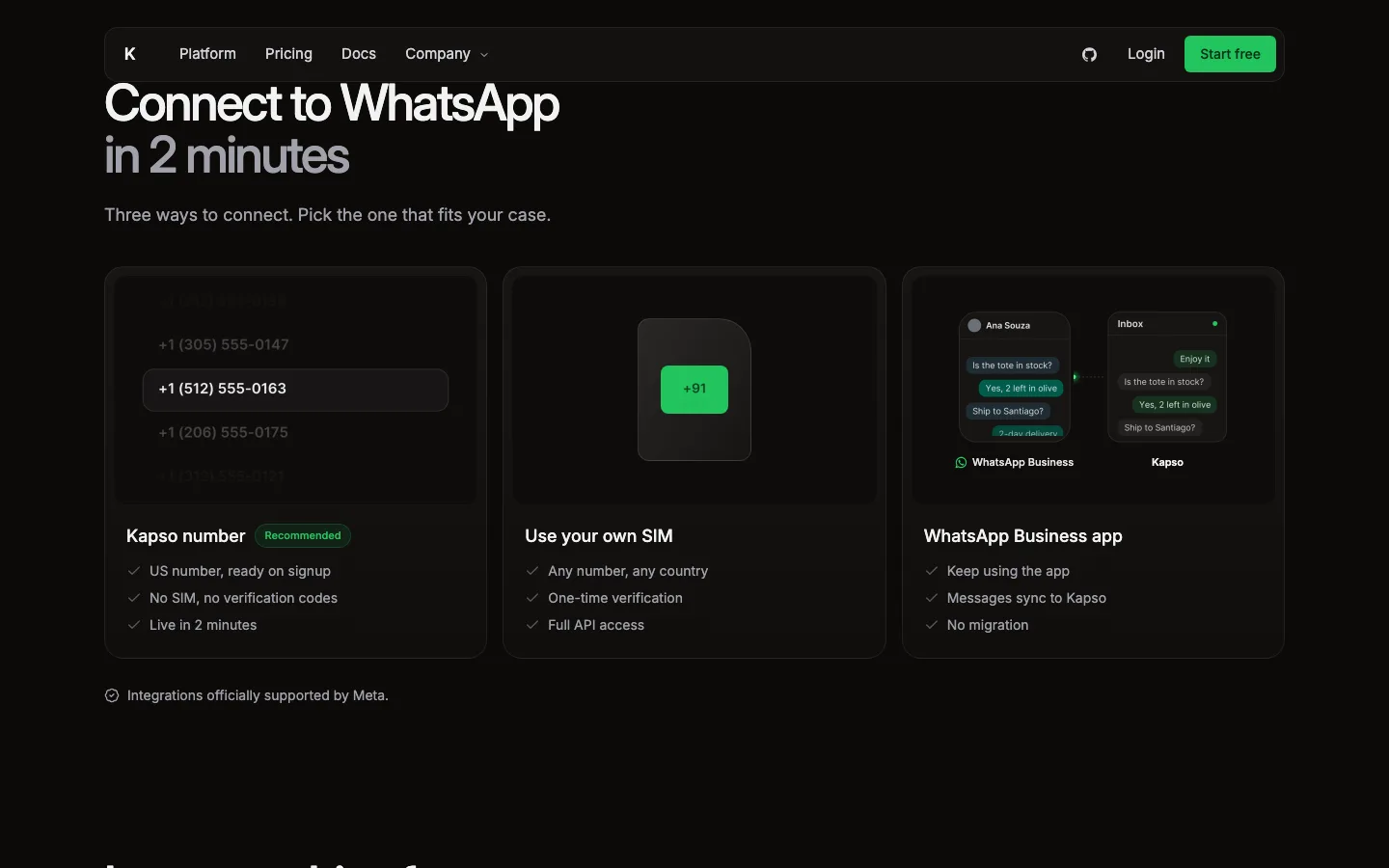
Public page kapso.com, 01/11/2026. The numbers in the image are the site's examples.
The simplest path
Doc step, not tested by us. Steps 1 to 3 happen on the website, no code. Step 4 is one copy-paste command. Set aside about 30 minutes (plus however long Meta's approvals take).
Get what you need
- A Facebook account. Connecting the number goes through Meta's screen, where you create (or pick) a Meta Business Portfolio and a WhatsApp Business account.
- A number for WhatsApp: Kapso's free US number, or a dedicated SIM, or the number you already use in the WhatsApp Business app.
- Claude Code, which comes with a paid Claude plan (Pro and up; see claude.com/pricing). It is not in Claude's free plan.
- Your business details up to date at Meta (legal name, address, phone and an HTTPS website) if you will use it in production.
Create the free account and connect a number
Sign up at app.kapso.ai (no credit card for the free plan, according to the site). Then go to Connected numbers → Connect new number and pick one of three:
| Option | For | What you need |
|---|---|---|
| Instant setup | Starting right now, for testing | A Facebook account. The number is US (+1) |
| Bring your own SIM | Your own number, any country | A dedicated SIM, one-time verification |
| WhatsApp Business App | Keep using the app you already have | The number active in WhatsApp Business and your phone nearby (you scan a QR code) |
The docs say it takes “about 5 minutes” (the home page says 2). Kapso opens Meta's screen, you log in with Facebook, pick the portfolio and confirm.
Heads up: connecting the number does not bypass Meta's rules. Display-name review, business verification, template review and payment can still block real sending (Kapso docs).
Get your Kapso key
In the Kapso dashboard, create a project API key (API keys). It lets Claude Code talk to your account. Keep it as KAPSO_API_KEY and never share it.
If you would rather not handle a key, the docs' other option is to install the Kapso CLI and log in through the browser (see “Going further”).
Install the skills for Claude Code
Open the Terminal in your project folder (on a Mac: ⌘ + space, type “Terminal”, Enter) and paste:
npx skills add gokapso/agent-skillsThis downloads Kapso's skills (manuals Claude Code reads when it needs them): integrate-whatsapp (connect, send messages and templates), automate-whatsapp (workflows, agents, functions and databases), integrate-whatsapp-calling (calls) and observe-whatsapp (logs and why a message did not arrive). They are in alpha and change fast. You need Node.js installed (it brings npx).
Before opening Claude Code, make the key from step 3 available in the Terminal (use your real value, and never save it in a file that goes to GitHub):
export KAPSO_API_KEY="your_kapso_key"Then open Claude Code:
claudeAsk for the agent in plain words
Kapso's own example request:
Add a workflow that books appointments over WhatsAppA fuller request, written by us as an example:
Using the Kapso skills, build a WhatsApp flow that replies to whoever messages, asks for their name and best day and time, confirms the request and flags it in the inbox for me to approve. Before sending any real message, show me the flow and ask for my confirmation.Important: this is an example request, not a working demo. The sources do not confirm a Google Calendar or any calendar integration: what exists is workflows, agents, functions and databases inside Kapso. If you want bookings to land in your calendar, that is an extra integration you will have to build and test.
Follow Meta's rules before going live
- Only message people who asked (opt-in). WhatsApp's policy requires that the person gave you their number and agreed to receive your messages.
- The 24-hour window. Each customer message opens (or resets) a 24-hour customer service window. Inside it you reply freely. Outside it, only with a Meta-approved template, which is charged.
- Meta's fees are per delivered message, by category (marketing, utility, authentication, service) and by the recipient's country. Brazil has its own price on Meta's rate card.
- Start on a test number with your own phone before opening it to customers.
What is true (and what the video simplified)
- “You don't need to build anything, the tool is ready”: overstated. You still need a Kapso account, a paid Claude plan for Claude Code, the API key and Meta's approvals (display name, business verification, templates, payment). And the skills are in alpha.
- The name: the video says “Capsu” and “Capsule”. It is Kapso, with a K. (The reference reel that went around says “Capso”: also wrong.)
- “It schedules meetings”: the sources do not confirm any calendar integration. The official example (“books appointments”) is an example request to build a flow, not a ready-made link to your calendar.
- “2,000 free messages”: true on Kapso's Free plan, per month. But Meta's fees are separate.
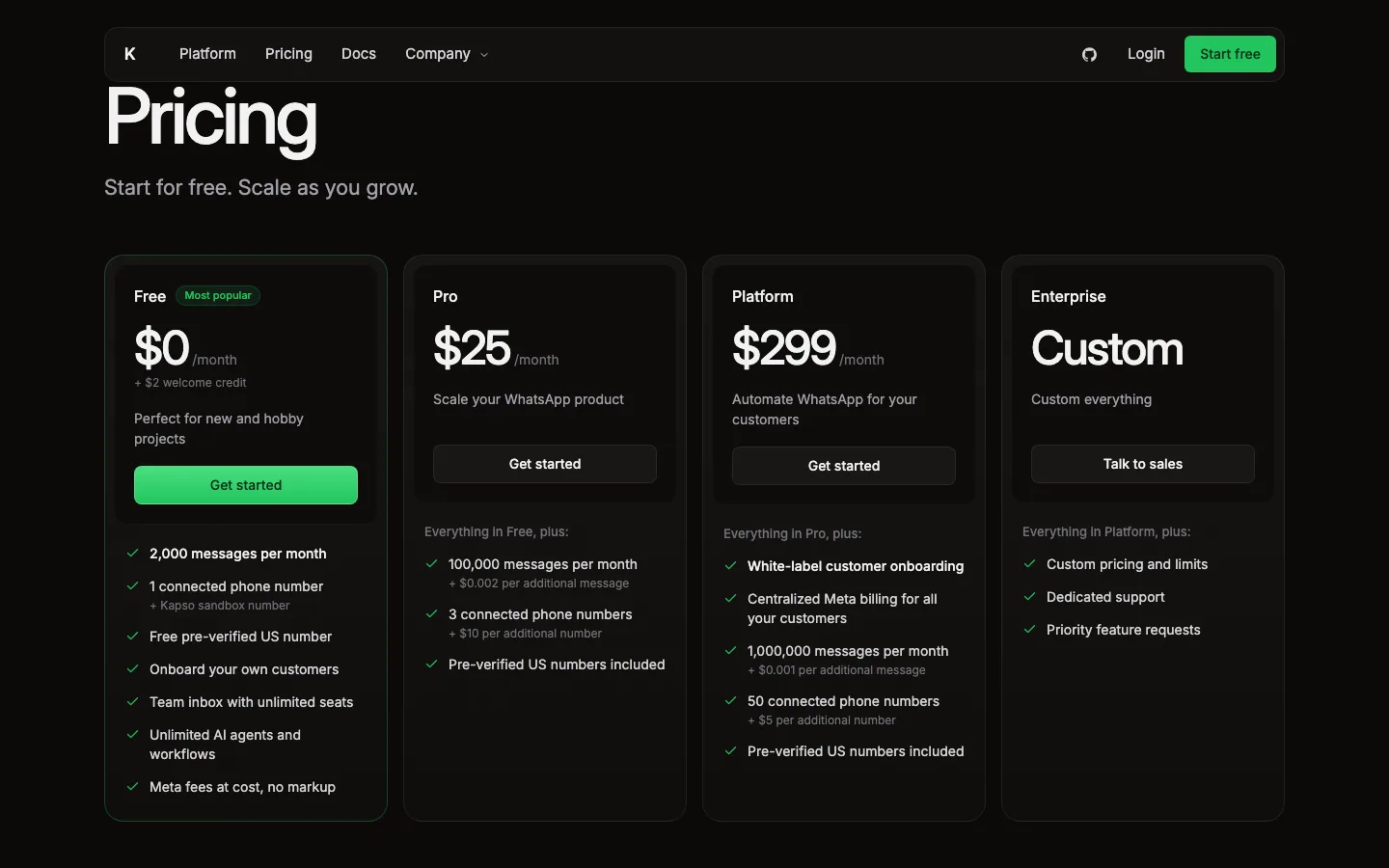
Public page kapso.com/pricing, 01/11/2026. Prices in US dollars, without Meta's fees.
Going further
Optional. Doc step, not tested by us (docs.kapso.ai, kapso.com/whatsapp-agent-skills, kapso.com/whatsapp-claude-code and the skills README, checked on 01/11/2026).
Claude Code plugin (skills + MCP)
Instead of npx, you can install the Kapso plugin, which brings the skills and the MCP server (the “socket” that lets Claude see your conversations, numbers and templates live). Inside Claude Code, run one at a time:
/plugin marketplace add gokapso/agent-plugins/plugin install kapso@kapsoWith the plugin, Kapso's page says you can connect your Kapso account from the agent itself.
Just the MCP, by hand
With KAPSO_API_KEY already exported in the Terminal (step 4), the official command is:
claude mcp add --transport http kapso https://api.kapso.ai/mcp --header "Authorization: Bearer $KAPSO_API_KEY"Start with a read-only request, as Kapso suggests:
List my WhatsApp numbers and their quality ratingClaude Code asks for permission before running each Kapso tool. Take your time before letting it send messages or change templates.
Codex
Kapso also has a plugin for Codex. In the Terminal:
codex plugin marketplace add gokapso/agent-pluginscodex plugin add app-69e50baf29a48191847ceec3bfd887a4@kapsoThe Kapso CLI
For logging in through the browser instead of using a key. Needs Node.js 20.19 or newer:
npm install -g @kapso/clikapso loginkapso statusThe skills prefer the CLI when it is installed and logged in. Without it, they use KAPSO_API_KEY and KAPSO_API_BASE_URL=https://api.kapso.ai (skills README).
The skills, one by one
| Skill | What it is for | Kapso's example request |
|---|---|---|
integrate-whatsapp | Connect numbers, receive messages (webhooks), send messages and templates | “Let our customers connect their own WhatsApp numbers” |
automate-whatsapp | Workflows, agents, functions and databases inside Kapso | “Add a workflow that books appointments over WhatsApp” |
observe-whatsapp | Logs, why a message or template did not deliver, number health | “Why did yesterday's reminders fail for some customers?” |
integrate-whatsapp-calling | WhatsApp calls and voice agents | (no example on the page) |
The skills repository has no license file, so we did not copy its files here: npx skills add downloads them straight from the official source.
Kapso's own agent
The dashboard has Kapso Agent: you describe what you want and it builds workflows and templates inside Kapso, no Claude Code needed. AI usage comes out of your credits (the site says “no markup”, only the payment fee). Not tested by us.
The other plans
| Plan | Price | Messages/month | Connected numbers |
|---|---|---|---|
| Free | US$0 (+ US$2 credit) | 2,000 | 1 (+ sandbox number) |
| Pro | US$25/month | 100,000 (+ US$0.002 each extra) | 3 (+ US$10 each extra) |
| Platform | US$299/month | 1,000,000 (+ US$0.001 each extra) | 50 (+ US$5 each extra) |
Kapso counts all messages toward the limit, the ones you send and the ones you receive (pricing docs). Meta's fees are always separate.
Quick questions
Do I need to know how to code?
To create the account and connect the number, no: it is all on the website. To use the skills, you need Claude Code (one Terminal command and a plain request). To put real customer service live, it helps a lot to check what Claude built and to test before.
Is it free?
Kapso's Free plan is US$0 per month, with US$2 credit and 2,000 messages per month (not unlimited: the agents and workflows are unlimited). But it is not free end to end: Meta's fees are charged separately, per delivered message, and Claude Code needs a paid Claude plan (Pro and up).
Does it work on my computer? And on my phone?
Kapso is a website: any browser. Claude Code runs in the computer's Terminal (Mac, Linux or Windows). Your customer's WhatsApp is the normal one, on their phone. If you use the WhatsApp Business app, you can keep using it alongside Kapso.
Is the number Brazilian (or local)?
The free ready-made number is a US (+1) number. For a local number, use your own SIM (any country) or the WhatsApp Business app you already use, subject to Meta's approvals.
Is it safe? Can I get banned?
- It is the official route (Meta's API, official partner), not an unofficial WhatsApp hack. That lowers the risk but does not remove it: Meta's rules apply.
- Only message people who opted in and respect the 24-hour window. Spam and unsolicited messages can hurt the number's quality.
- Keep
KAPSO_API_KEYonly on your computer and never push it to GitHub. - Messages go through Kapso and Meta, and through whatever AI model your agent uses.
Does Claude reply on my WhatsApp by itself?
No. The agent or workflow you build on Kapso replies. Claude Code, with the skills, helps you build and fix that agent.
Honest limits
- Not free end to end: Kapso Free + Meta's fees + a paid Claude plan for Claude Code.
- 2,000 messages per month on Free.
- The free number is US; a local one only with your SIM or the Business app, with Meta's approval.
- Meta's approvals can block real sending even with the number connected.
- Skills in alpha: commands and names can change.
- No confirmed calendar integration.
- We did not test Kapso or measure anything. Data checked on 01/11/2026 and may change.
Credits and source
- Product: Kapso, “WhatsApp for developers”, Meta Business Partner. Screenshots of the public pages kapso.com and kapso.com/pricing, on 01/11/2026.
- Skills and install: kapso.com/whatsapp-agent-skills, Claude Code + Kapso and the Kapso docs.
- Connecting a number: Kapso docs, Connect WhatsApp.
- Fees and the 24-hour window: Meta pricing and the WhatsApp Business policy.
- Claude Code on Pro: claude.com/pricing.
- Skills source code: github.com/gokapso/agent-skills (no license file; we copied nothing from it).
- This guide is not affiliated with Kapso, Meta or Anthropic.
Comments
Have a question or something to add? Join the conversation.
No account needed. Select Sign in and choose a name to comment.
Loading the conversation…
Comment privacyCommenting guidelines