
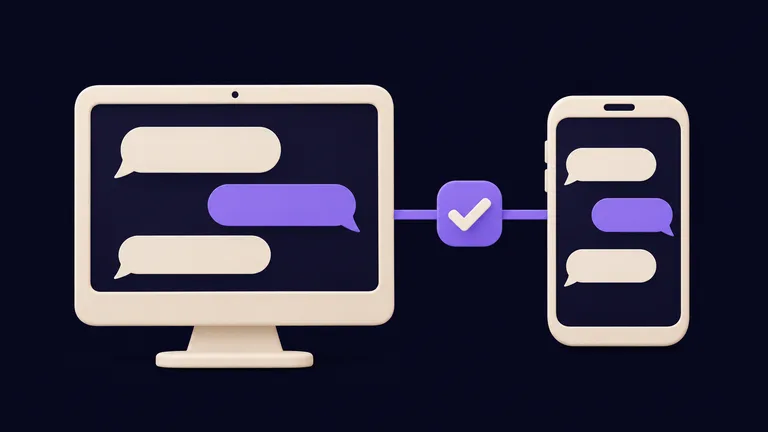
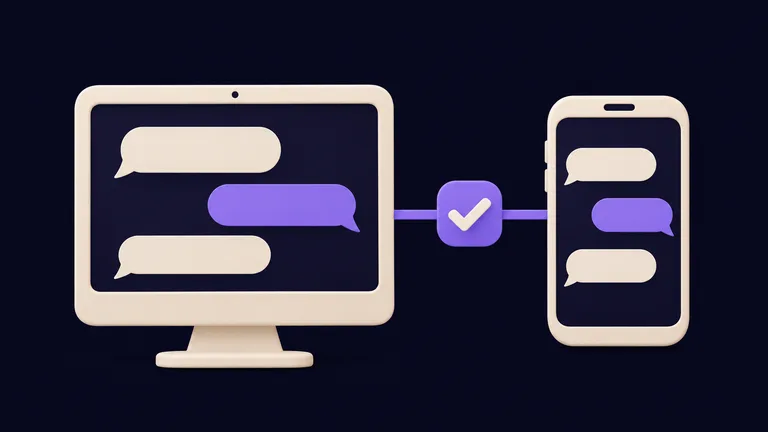
Connect one Telegram bot, approve your own account, and get a reply on your phone. Start after the installation lesson, with a working dashboard chat.
Run terminal commands on the computer that runs OpenClaw. For a server installation, that means your SSH session.
Create and connect your bot
In Telegram, open the verified @BotFather account, send /newbot, and follow the naming prompts. Keep the resulting token private; it controls your bot. Telegram setup reference.
Open the guided channel setup in your terminal:
openclaw channels add telegramProvide the token when requested, choose the agent that should receive messages, and keep the direct-message policy set to pairing. Use the interactive setup rather than pasting the token into a chat. Channel wizard reference.
Reload an installed Gateway service:
openclaw gateway restartIf you run in the foreground, stop that process with Ctrl+C and run openclaw gateway again.
Approve your own account
Open your new bot in Telegram and send “Hello”. With pairing enabled, an unapproved account receives an access request instead of a normal agent conversation.
Open the dashboard with openclaw dashboard. In Settings → Channels → DM access requests, compare the sender identity with your account before approving it. On a fresh personal setup, select the option to make yourself the first command owner if it is offered.
This approval permits direct messages. Group access is separate; leave groups out of this first test. Pairing and owner access.
Verify the complete round trip
Send: “Reply with: Telegram is connected.” You should receive a new agent reply inside Telegram. A saved token or a running process alone does not prove that messages can complete the journey.
If there is no reply, check the live channel:
openclaw channels status --probe| What you see | What to check |
|---|---|
| Pairing request | Approve the matching account, then send a new message. |
| Invalid token | Check the bot token with BotFather and repeat guided setup. |
| Gateway unavailable | Start the Gateway on its host; a config-only status is not a live result. |
| Dashboard works, Telegram does not | Check the selected bot, account routing, and channel status. |
Keep tokens and unrelated conversation details out of screenshots or support reports.
Prefer Discord or WhatsApp?
The same sequence applies: connect an account, restrict access, and test a real reply. Their setup requirements differ.
- Discord: create a bot application, configure the required intents and permissions, then use a private test space. Follow its channel-specific setup.
- WhatsApp: link an account through its QR login flow. Linking the account and approving people who message it are separate decisions.
Finish one channel before adding another, so failures are easier to locate.
Comments
Have a question or something to add? Join the conversation.
No account needed. Select Sign in and choose a name to comment.
Loading the conversation…
Comment privacyCommenting guidelines