


Commented CELULAR? Here is the step-by-step. Artemis is an open-source tool from Google that turns a request written in plain words into taps on a real Android phone: it looks at the screen, decides the next step, taps, types, scrolls and switches apps. You plug the phone into your computer (or use a pretend phone, an emulator) and write what you want.
Official project logo (README, Apache 2.0 licence, Google).
Five truths first:
- The program is free, the AI is not. The code is open (Apache 2.0 licence). But the “thinking” is done by an AI model running on your API key (Gemini, OpenAI or Anthropic), paid per use.
- Android only. It does not work on iPhone: iOS is only on the project's roadmap.
- It does not do “anything” on your phone. The README talks about app testing and everyday tasks across apps. Some tasks will fail, and no app is guaranteed.
- Use a test phone and a test account. It installs an accessibility helper on the device and acts as if it were you. Do not start on your personal phone or real accounts.
- These steps come from the official documentation and WERE NOT TESTED BY US. The images come from the README itself (frames of the official demo and the panel).
| What it is | Detail |
|---|---|
| Name | Artemis (ARTEMIS in the repository) |
| Made by | Google, in the official github.com/google repository, created on 13/08/2026 |
| Licence | Apache 2.0: free to use, copy and modify, with credit |
| Phone | A real Android (USB cable, with USB Debugging on) or an emulator. No iPhone |
| Computer | Mac, Linux or Windows, with Python 3.12 or newer |
| AI that thinks | Your API key: Gemini, OpenAI or Anthropic (among others), paid per use |
| Ways to use it | Browser panel (localhost:8000), command line and an MCP connection to Claude Code, Codex and co. |
| Result | 99%+ on ONE benchmark, Google Research's AndroidWorld, according to the team itself |
How it works, in plain words
Think of Artemis as someone sitting in front of the phone, following your instruction:
- You write the request, like “open Settings and tell me the battery level”.
- It looks at the phone screen (reads the text and where each button is).
- It decides the next step using an AI model (Gemini, for example).
- It taps, types, scrolls or switches apps, then looks at the screen again. It repeats until done.
In the official demo (the README GIF), a single request makes Artemis build a Google Maps route through several California cities, note the total trip time, then open YouTube and play Coldplay:
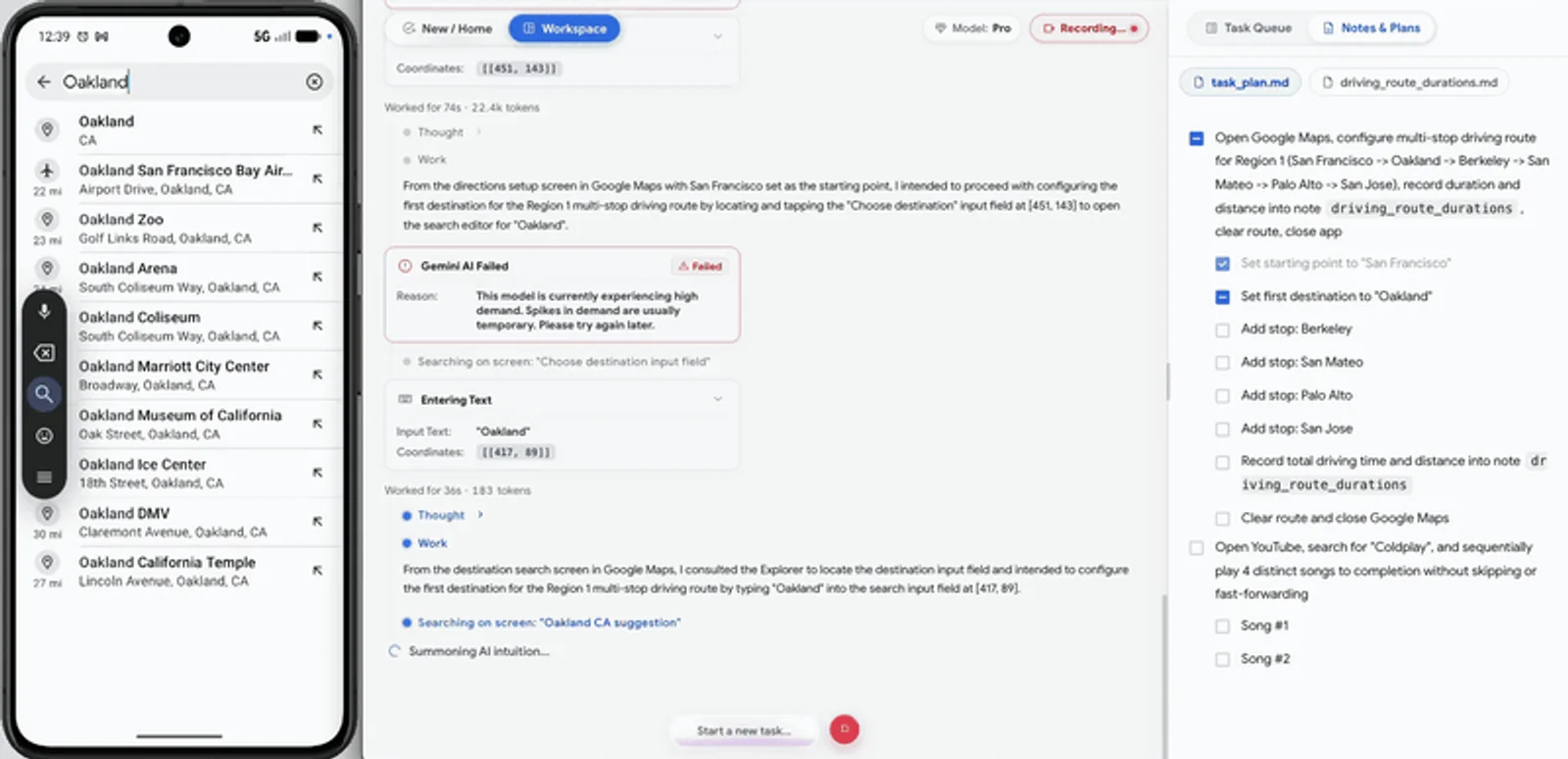
The phone searches for the next city on the route while the panel shows each step. Frame of the official README GIF.
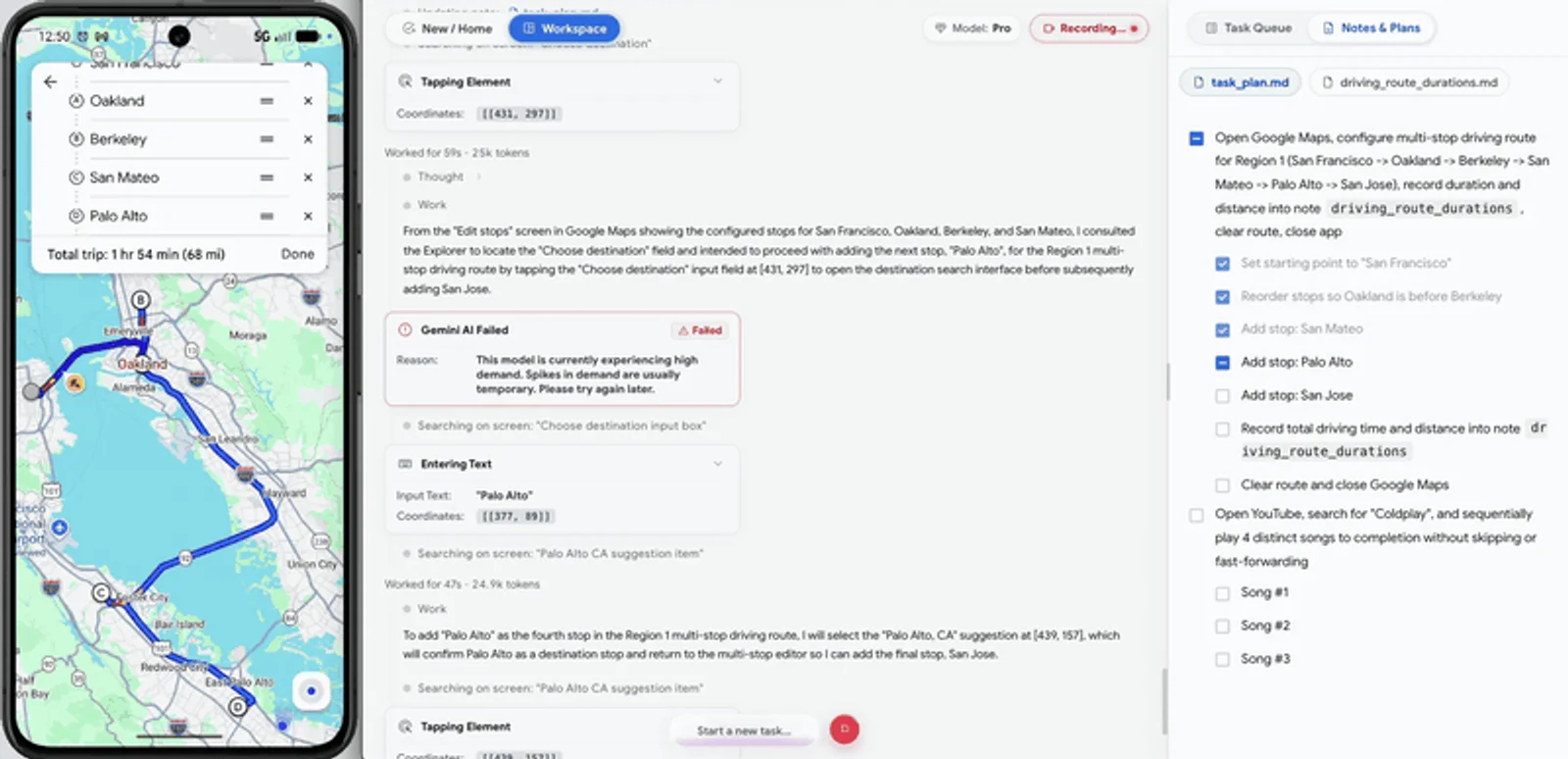
The finished route, with the total time at the top. Frame of the official README GIF.
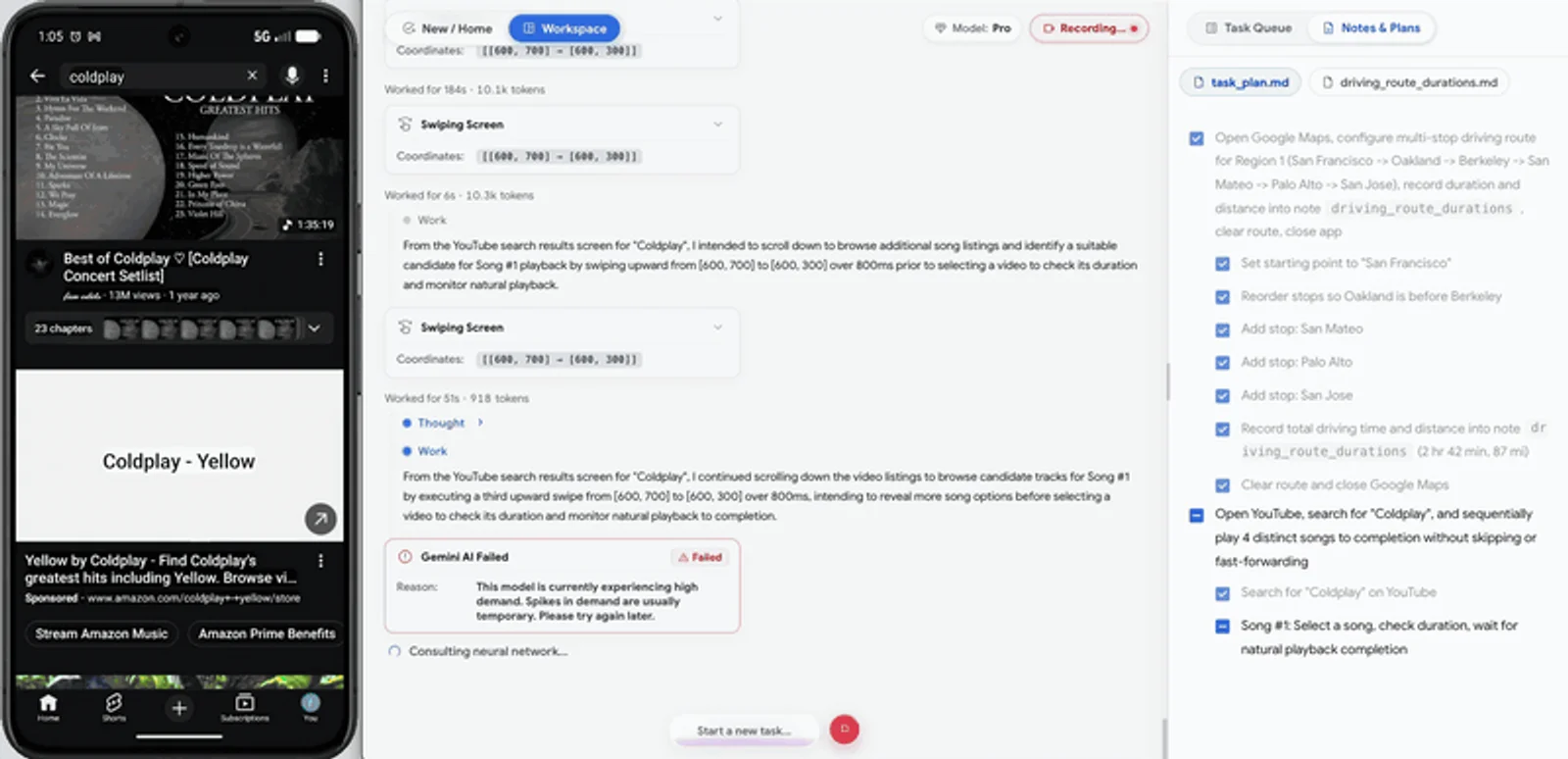
Then YouTube playing Coldplay. Frame of the official README GIF (not a test by us).
The simplest path
Documentation step, not tested by us. You do not need to code, but you will copy and paste two commands into the Terminal. Each command has a copy button. Set aside about 30 minutes.
Gather what you need
- A computer: Mac, Linux or Windows.
- Python 3.12 or newer (the project requires it).
- An Android phone with USB Debugging on and a USB cable. Ideally an old or test device. No phone? You can use an emulator (a pretend Android inside your computer, like the one in Android Studio).
- An API key for an AI model. The project's example file has room for
GEMINI_API_KEY,OPENAI_API_KEYandANTHROPIC_API_KEY. The Artemis panel recommends Gemini, whose key you create in Google AI Studio.
How to turn on USB Debugging (Android documentation step, not tested by us): open Settings → About phone, tap Build number 7 times until you see “You are now a developer”, go back and open Developer options → USB debugging. Names vary a bit by brand. When you plug in the cable, the phone asks whether to trust the computer: accept.
Download Artemis
Open the Terminal (on Mac: ⌘ + space, type “Terminal” and Enter; on Windows: PowerShell). Paste this command and press Enter. It downloads the project and enters the folder:
git clone https://github.com/google/artemis.git && cd artemisIn Windows PowerShell, if && errors, run the two parts separately: first git clone https://github.com/google/artemis.git, then cd artemis.
Start it with one command
On Mac or Linux:
./start.shOn Windows (PowerShell):
.\start.batThe start script installs what is missing by itself: ADB (the “talk cable” to Android), scrcpy (mirrors the phone screen), FFmpeg (video) and uv (handles Python). It creates the .env settings file, may ask for your computer password to install programs and asks whether to connect Artemis to your AI agents (you can answer that later). At the end, it opens the panel in your browser at http://localhost:8000 (README).
In the panel, pick Google Gemini and paste your key, or put the key of the model you prefer in the .env file.
Ask for the first task
In the panel, click “Start a new task...” and write a simple request. The README's own example reads the battery:
Open Settings, find Battery and tell me current levelThe panel shows the phone live and each step the AI takes (“Thought”, “Tapping Element”, “Swiping Screen”):
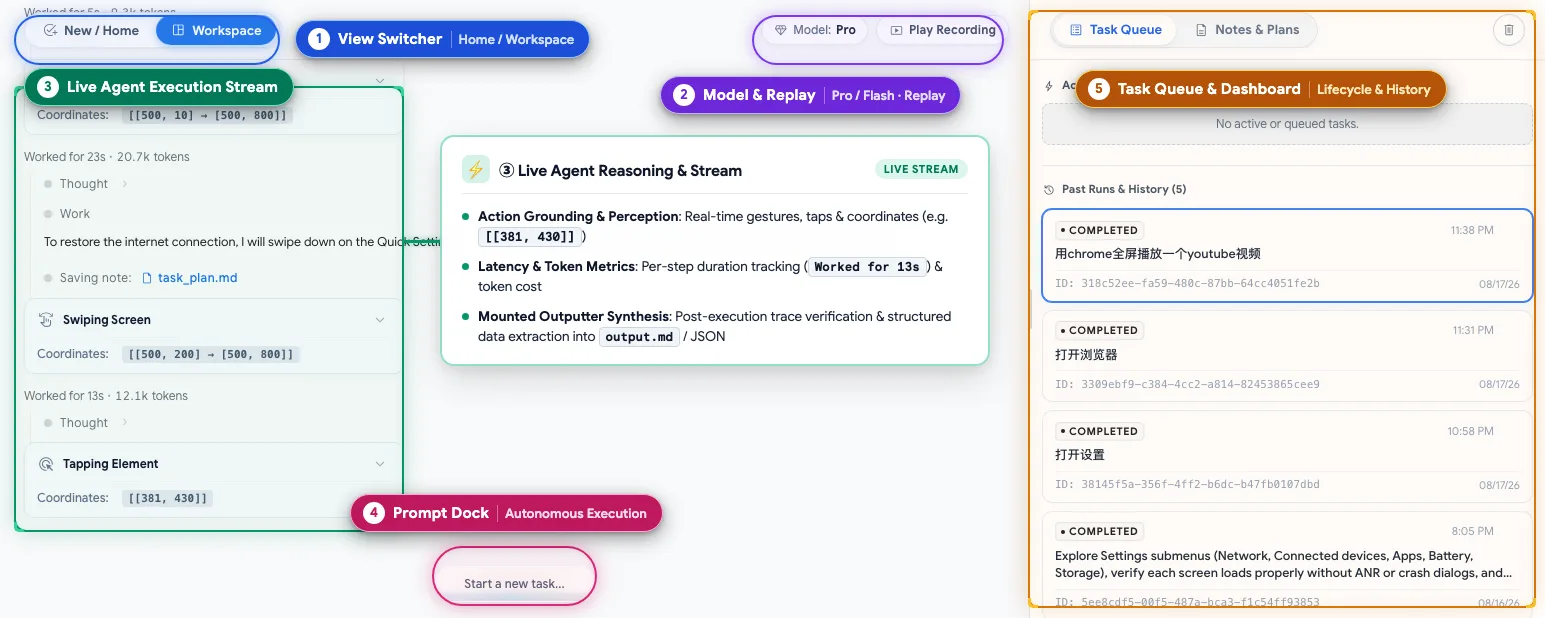
The panel, in the README's own explainer image (not a test by us).
Connect it to Claude Code or Codex
If you already use a coding agent, Artemis has an MCP server: the “plug” that lets Claude Code or Codex control the phone through it. start.sh already asks; to do it later, inside the artemis folder:
uv run artemis mcp --install claudeuv run artemis mcp --install codexOr, for every client it supports (Antigravity, Cursor, Claude Code, Codex, Windsurf, VS Code, Cline/Roo and OpenClaw):
uv run artemis mcp --install allClose and reopen the agent afterwards.
Test your own app
The main use is testing an app on a real phone. The README gives this request for Claude Code, Codex or Antigravity:
Build the latest changes into an APK, install it on the connected device, open the login screen with a test account, verify if there are any unexpected popups after login, and return screenshots of the final page.Always use a test account, never your real one.
What is true (and what the video simplified)
- “Basically any activity on your phone”: overstated. The README talks about testing and everyday tasks across apps. Complex tasks can fail and no app is guaranteed.
- “Completely free”: the code is free (Apache 2.0). The AI that thinks runs on your API key, paid per use. The Gemini key may have a free tier in Google AI Studio, with limits Google changes at will.
- “99% on all benchmarks” (a line going around other videos): false. It is 99%+ on ONE benchmark, Google Research's AndroidWorld (100+ tasks across 20+ apps), according to the Artemis team itself.
- The Maps and YouTube demo is the official README GIF. The request typed into the panel in the video is our own Portuguese example, not the demo's prompt.
Going further
Optional. Documentation step, not tested by us (README, start.sh, .env.example and mcp_server/rules.md, commit 351ca84, checked on 31/10/2026).
Run it from the command line
Without the panel, straight from the Terminal (inside the artemis folder):
uv run artemis run "Open Settings, find Battery and tell me current level" --profile flashFlash or Pro?
| Mode | How it works | Time per step |
|---|---|---|
flash | Fast and cheap: looks, thinks, acts. Good for simple, repetitive tasks | ~3 to 5 s |
pro | Makes a plan, checks each tap first and reviews the result at the end. For long tests | ~15 to 40 s |
Pro spends more of your API key, because it makes more AI calls.
Everyday commands
| Command | What it does |
|---|---|
uv run artemis ui | Opens the web panel |
uv run artemis status | Shows whether the server is running |
uv run artemis stop | Stops the server |
uv run artemis restart | Restarts the server |
uv run artemis doctor | Checks the installation |
uv run artemis init | Guided setup, including MCP |
uv run artemis helper status | Shows the helper installed on the phone |
uv run artemis helper uninstall | Removes the helper from the phone |
What it installs on the phone
On the first task, Artemis installs the Artemis Accessibility Helper, a small accessibility service that reads the screen. You will see an “Artemis test helper is running” notification and a new entry under Settings → Accessibility. The README says it only listens on the phone itself and sends nothing elsewhere. To remove it: uv run artemis helper uninstall.
On a personal or shared phone, .env.example recommends turning off automatic installation and the always-on screen:
ARTEMIS_HELPER_AUTO_INSTALL=falseARTEMIS_KEEP_DEVICE_AWAKE=falseThe .env settings file
start.sh copies .env.example to .env. That is where the keys live (GEMINI_API_KEY, GOOGLE_API_KEY, OPENAI_API_KEY, ANTHROPIC_API_KEY, OPEN_ROUTER_API_KEY, XAI_API_KEY) along with the default mode (ARTEMIS_DEFAULT_PROFILE=flash). Never share that file. The official example, here on the site: env.example.txt.
Rules for your agent
The project ships a “testing mindset” file that teaches Claude Code, Codex or Cursor to use Artemis carefully (explore before writing tests, pick flash or pro, handle step timing). --install already installs it; the copy is here on the site, unchanged: artemis-rules.md.
Configure MCP by hand
If you prefer, generate your agent's configuration snippet and paste it into its file:
uv run artemis mcp --generate-config codexTo use the artemis command without uv run in any folder, run this once inside the project folder:
uv tool install -e .Quick questions
Do I need to know how to code?
Not to install it and ask for tasks in the panel: two copy-paste commands and an API key. But installation is through the Terminal, and the strongest use (testing your own app) is for developers.
Is it free?
The program is free and open source (Apache 2.0). The AI is not: every step uses your API key (Gemini, OpenAI, Anthropic…), paid per use. The panel recommends a Gemini key from Google AI Studio, which may have a free tier with limits. Pro mode costs more than flash.
Does it work on my computer? And my phone?
Computer: Mac, Linux or Windows, with Python 3.12+. Phone: Android only, connected by cable with USB Debugging, or an emulator. No iPhone: iOS is only in the project's future plans.
Is it safe?
- The code is open and from Google, but the project is new (created in August 2026) and changes fast.
- It acts as you on the phone: taps, types and opens apps. Use a test phone and a test account, never your bank, WhatsApp or personal email.
- It installs an accessibility helper on the phone. Remove it with
uv run artemis helper uninstall. - What is on screen goes to the AI model you chose (Google, OpenAI, Anthropic…), as with any use of those AIs.
- Keep your API key only in
.envand do not share it.
Does it understand Portuguese or Spanish?
The project does not officially say it understands other languages. AI models usually understand such requests, but the commands, panel and documentation are in English. If a request fails, try it in English.
Does it create accounts or change settings for me?
That is not a documented feature. What the README shows is opening apps, tapping, typing, scrolling, switching apps, testing your app and returning screenshots and reports.
Honest limits
- Android only. No iPhone for now.
- Not free end to end: the AI runs on your key, paid per use.
- It does not do any task: testing and everyday tasks across apps, with possible failures.
- The 99%+ is on one benchmark (AndroidWorld), measured by the team itself.
- Terminal required for installation, plus a phone (or emulator) connected to the computer.
- We did not test Artemis or measure anything. Data checked on 31/10/2026 and may change.
Credits and source
- Project: Artemis (ARTEMIS), by Google (“Copyright 2026 Google LLC”), Apache 2.0 licence. The logo, demo frames (
docs/assets/demo.gif), panel image,.env.exampleandmcp_server/rules.mdcome from the repository at commit351ca84, with no content changes (images only resized and converted). - The benchmark cited: AndroidWorld, by Google Research.
- USB Debugging: official Android documentation.
- Official source: the code at github.com/google/artemis.
- This guide is not affiliated with Google, Anthropic or OpenAI.
Comments
Have a question or something to add? Join the conversation.
No account needed. Select Sign in and choose a name to comment.
Loading the conversation…
Comment privacyCommenting guidelines