
Commented AKITA? Here is the link and the step by step. ai-memory is a free, open-source tool that gives memory to AI coding agents (Claude Code, Codex, Cursor, Gemini CLI and more than 20 others). While you work, it takes notes on its own: what you asked for, what failed and what is still open. So if Claude’s limit runs out mid-task, Codex starts out knowing where you left off, instead of you explaining everything again.
The project’s official logo (README, MIT licence, Fabio Akita).
First, five truths:
- ai-memory is free, the AI is not. It is free and open source (MIT licence). Claude Code and Codex keep their own plans: your plan’s limits and billing still apply.
- It does not “remember everything”. The next agent gets a handoff: where you left off, what failed and what is still open, and it can search for the rest. The official site warns that what comes back can be incomplete or outdated (aimemory.sh, 30/10/2026).
- It is for people who already use a coding agent (Claude Code, Codex and the like). If you only use ChatGPT or Claude in the browser, it does nothing for you yet.
- You install it from the Terminal. On Mac and Linux it is two copy-and-paste commands. On Windows, the recommended path is WSL2; plain Windows is experimental (README, 30/10/2026). It does not run on phones.
- The steps come from the official documentation and WERE NOT TESTED BY US. The images are screenshots of public pages and one image from the README itself.
| What | Detail |
|---|---|
| Name | ai-memory |
| Made by | Brazilian developer Fabio Akita (AkitaOnRails), of the Akitando YouTube channel |
| Licence | MIT: free to use, copy and modify |
| Agents | More than 20 (the README says “more than twenty”), such as Claude Code, Codex, Cursor, Gemini CLI and OpenCode. Not “any agent” |
| Computer | Mac and Linux (supported), Windows via WSL2 (supported), native Windows (experimental) |
| API key | Not needed by default: capture, search and handoffs work with no key (README) |
| Where it lives | In a small server running on your own computer, in plain text (markdown) files |
| Version | v3.3.0, released 30/10/2026 (GitHub) |
How it works, in plain words
Think of ai-memory as a work logbook that fills itself in:
- A recorder that switches itself on. When you use the agent, “hooks” note down your requests, the commands the agent ran and when each session starts and ends. You never have to say “remember this” (README).
- It becomes a text file that is yours. At the end of a session, those notes become a text page (markdown) in the project’s “wiki”, kept on your computer. You can open, read, search and even edit it by hand.
- The next agent starts out knowing. When you open another agent in the same folder, it gets a short summary of where you left off, what failed and what is still open, and can search for the rest when it needs to.
- No API key. That default path calls no AI at all to work. The AI doing the thinking is still the one on your plan.
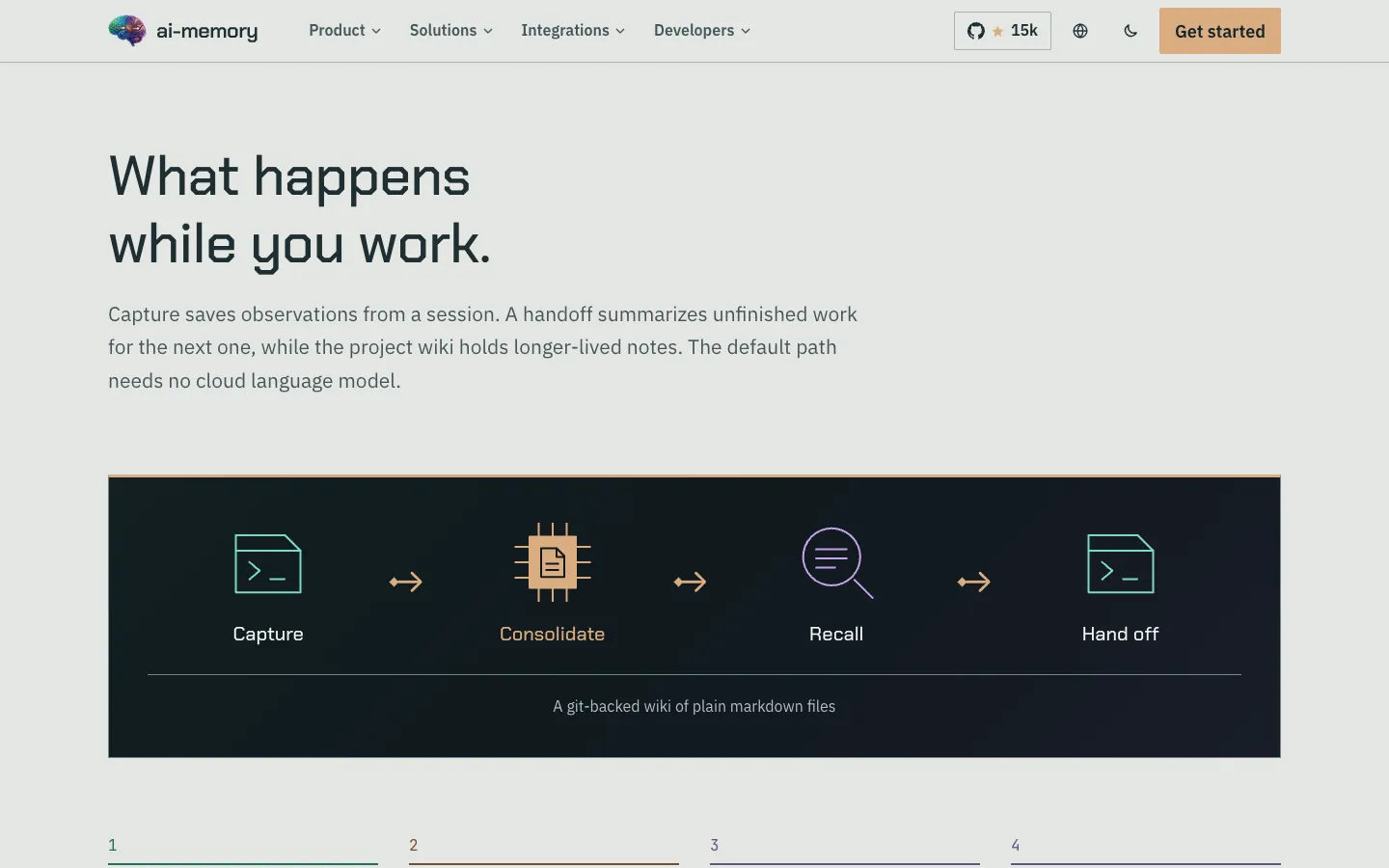
The four stages on the official site: capture, consolidate, recall and hand off. Captured on 30/10/2026.
The simplest path
Documentation step, not tested by us. You do not need to code, but you will copy and paste commands into the Terminal. Each command has a copy button.
Check it is for you
ai-memory helps if you already use at least one coding agent on your computer, such as Claude Code or Codex, and want to:
- switch agents when one runs out of limit, without explaining the project again;
- come back to a paused project and have the agent remember what was already tried.
Akita himself says that if you use only one agent, you probably do not need anything extra (blog, 23/05/2026). The gain shows up when you switch agents.
Install it with one command
On Mac or Linux: open the Terminal (on a Mac: ⌘ + space, type “Terminal”, Enter), paste this command and press Enter. No administrator password needed:
curl -fsSL https://github.com/akitaonrails/ai-memory/releases/latest/download/install.sh | shThe script downloads the right build for your computer and checks its checksum before installing; if it does not match, it refuses to install (README).
On Windows: the recommended path is WSL2 (Linux inside Windows). Install and open your agent inside WSL2 and run the same command there. The command for plain Windows is under “Going further”, but there it is experimental.
Rather have the agent install it? Open Claude Code or Codex and paste this request. It points to the official instructions for agents, copied here on the site:
Install ai-memory for me by following exactly the instructions at https://cauhi.com/learn/ai-memory/INSTALL_FOR_AGENTS.md and show me each command before you run it.Let it find your agents
Still in the Terminal, run:
ai-memory setupIt creates the folder where memory lives, starts a small server on your computer only and looks for the agents you have installed. Before changing anything, it shows the plan and asks: answer y to accept them all, or type the numbers of the agents to wire. Running it again changes nothing (README).
Then close and reopen your agent and ask it: “What do you remember about this project?”. If it answers through ai-memory, everything is wired (README).
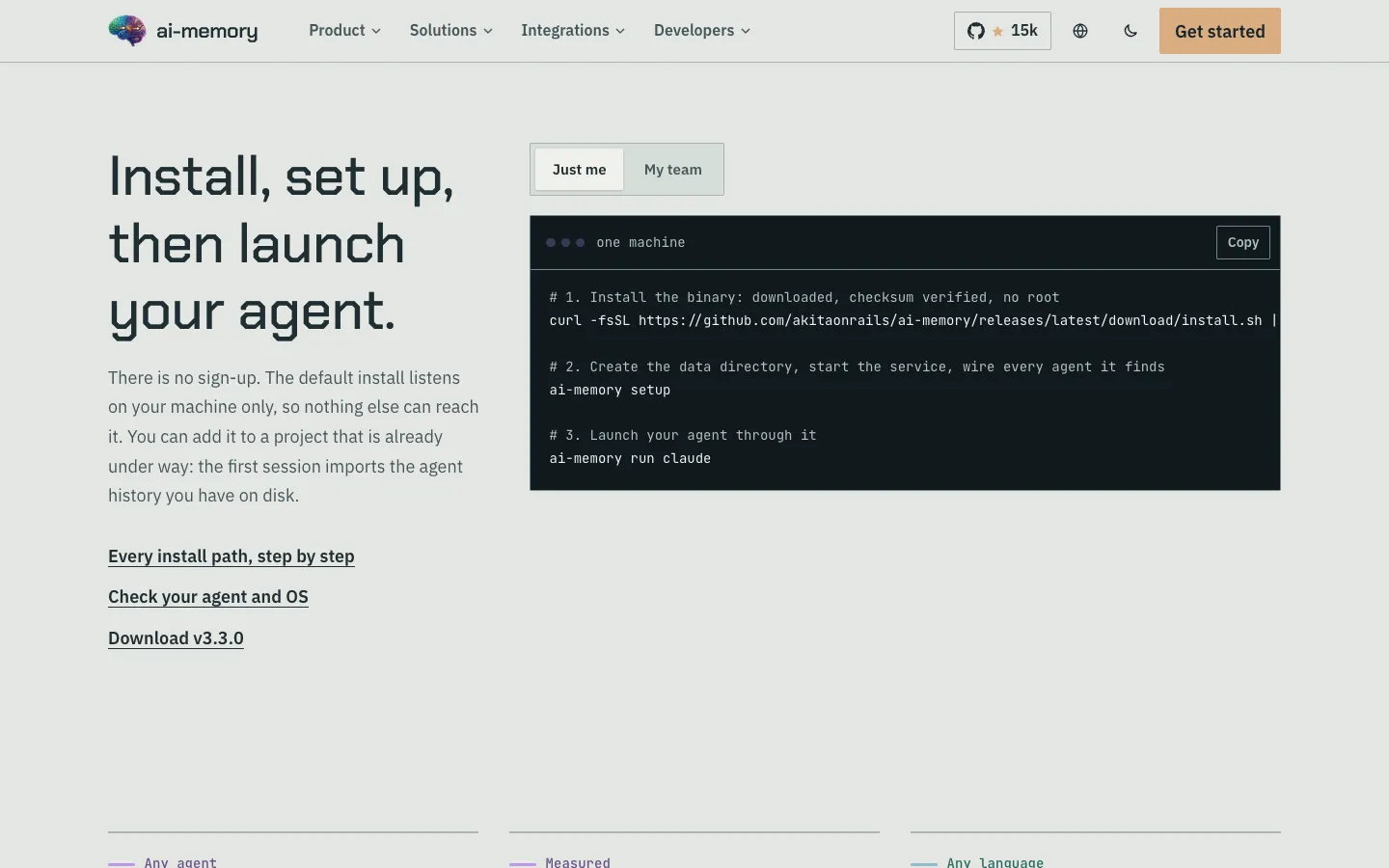
The same three steps on the official site, captured on 30/10/2026.
Open Claude Code through ai-memory
Go into your project folder and, instead of opening Claude Code directly, open it like this:
ai-memory run claudeThe README calls this the preferred way to launch: the first time, it wires the hooks by itself, and it is what lets you continue the session in another agent (section “If in doubt, start your harness with ai-memory run”). From here on, use Claude Code as usual.
Hit the limit? Carry on in Codex
Quit Claude Code and, in the same folder, run:
ai-memory run codexThen just ask it to continue. An example request, written by us:
Pick up where we left off: tell me what was already tried, what failed and what the next step is before you touch any file.What really happens: Codex gets the handoff (where you stopped, what failed, what is still open) and, on the same computer, a private, temporary copy of Claude’s visible history, for when a detail is missing. That copy disappears when the agent exits. The README says this covers exactly quota exhaustion and other abrupt exits. Codex still uses your ChatGPT plan, with its own limit.
What if Codex hits a wall too? The memory is yours, not the agent’s: you can go back to Claude with ai-memory run claude or move to another supported agent.
Open and read the memory
setup leaves a browser page with the project memory: open http://127.0.0.1:49374/web on your computer (the address is also printed at the end of setup). Because the install comes with a password, the browser asks for a username and password: any username and, as the password, the contents of the auth-tokens/default file in ai-memory’s data folder (docs/install.md).
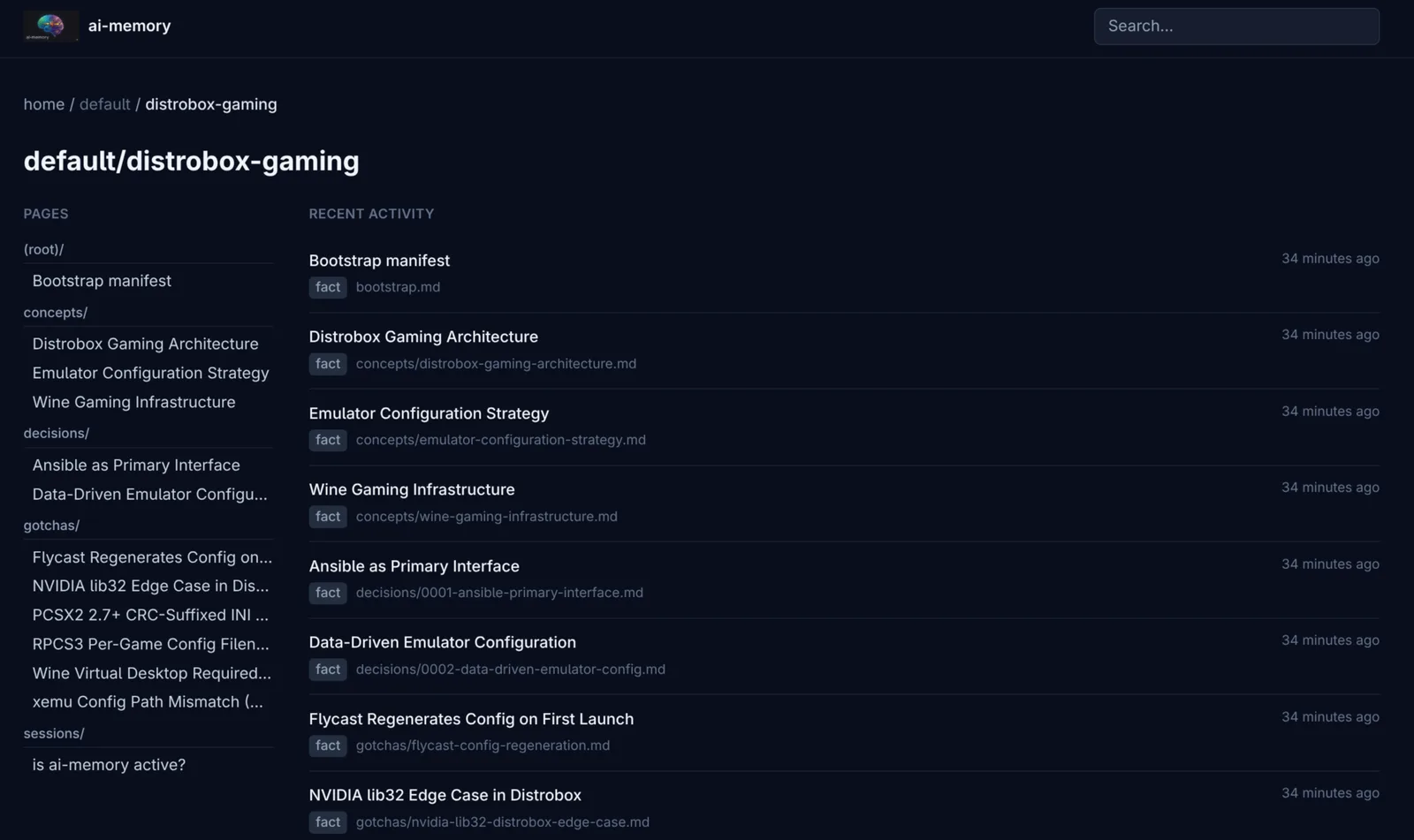
The memory in the web view, an image from the README itself (Akita’s project, not a test by us). Each row is a text page you can open.
What is true (and what the video simplified)
- “Free”: ai-memory is free (MIT). Claude Code and Codex keep their own plans, with the usual limits and billing.
- “It picks up a summary of where you left off”: yes, a handoff with where you stopped, what failed and what is still open. It does not “remember everything”, and what comes back can be incomplete.
- “A week later he walked it back”: in his 23/05/2026 post, Akita says he had recommended another memory tool five days earlier and walked it back after a week of using it, because of a data-loss window and notes that vanished silently. That is when he started ai-memory.
- “More than 20 agents”: the README says “more than twenty” and its support table lists about 35. Not “any agent”.
- The Claude and Codex screens in the video (the freelance request, the failing fixes, the limit badge, the usage bar and the session page) are an illustration of a possible use. The web memory screen is the real README image. We did not test the tool.
Going further
Optional. Documentation step, not tested by us (README, INSTALL_FOR_AGENTS.md, docs/windows.md, docs/install.md and docs/managed-workstreams.md, commit 8cb9722, 30/10/2026).
Install as a plugin (Claude Code or Codex)
The binary is still installed as in step 2; the plugin only wires the agent:
claude plugin marketplace add akitaonrails/ai-memory && claude plugin install ai-memory@ai-memorycodex plugin marketplace add akitaonrails/ai-memory && codex plugin add ai-memory@ai-memoryCodex then asks you to trust the hooks in /hooks.
Windows
- Inside WSL2 (recommended): use the Linux commands from steps 2 and 3 and launch the agent inside WSL2 too. Do not mix: if the agent runs in WSL2, ai-memory must be in WSL2 (docs/windows.md).
- Native Windows (experimental), in PowerShell, no admin:
irm https://github.com/akitaonrails/ai-memory/releases/latest/download/install.ps1 | iexThen run ai-memory setup. On Windows it starts the server when you sign in, with no console window.
Other ways to install
- Arch Linux (AUR):
yay -S ai-memory-bin(prebuilt) oryay -S ai-memory(builds), thenai-memory setup. - Fedora: download the RPM from the latest release and run
sudo dnf install ./ai-memory-*.rpm, thenai-memory setup. - Mac menu bar app, Docker and NixOS: they exist, but need a build or more setup. They are in the project README (link in the credits).
setup options
| Command | What it does |
|---|---|
ai-memory setup --plan | Only prints the plan, changes nothing |
ai-memory setup --web | Shows the plan in the browser and you tick the agents |
ai-memory setup --agent claude-code | Wires only the agent you name (repeat for several) |
ai-memory setup --yes | Accepts the plan without asking |
ai-memory uninstall --apply | Removes everything ai-memory installed, and only that |
Everyday commands with ai-memory run
| Command | What it does |
|---|---|
ai-memory run claude | Opens Claude Code with memory and session continuity |
ai-memory run codex | Opens Codex on the same “workstream”, with Claude’s local history |
ai-memory run | No name: continues the newest usable session |
ai-memory continue | Resumes the newest workstream |
ai-memory resume | Pick from a list of this folder’s workstreams (--search to search) |
ai-memory recent | Lists the newest memory pages |
ai-memory status | Shows the server status |
ai-memory upgrade | Updates the native install (checksum-verified) |
Inside the agent, you can ask things like “where did we leave off?”, “have we discussed X?” or “catch me up” (README, “Everyday use”).
Details worth knowing:
- The copy of Claude’s history only exists on the same computer. On another machine you only get the server’s handoff.
- If your
claudeis a shell alias,ai-memory runcannot see it; use a same-named script on yourPATHor--executable. - To not record a folder, use
[capture] ignore_pathsin the project’s.ai-memory.toml. - Optional AI: with an API key configured, summaries get better and semantic search turns on. Without a key, everything still works (README, “LLM providers”).
- Teams: you can run one server for everyone, with login, attribution and an audit log, with no paid tier (README, “Teams and multiple machines”).
Official instructions for agents, here on the site (MIT, Fabio Akita, unchanged, in English): INSTALL_FOR_AGENTS.md.
Quick questions
Do I need to know how to code?
Not to install it: it is two copy-and-paste commands. But ai-memory is only useful if you already use a coding agent (Claude Code, Codex, Cursor…). The official site says: “This is a tool for people already using AI to work on code.”
Is it free?
ai-memory is free and open source (MIT), with no sign-up and no API key by default. The agents are not: Claude Code and Codex keep their own plans (or paid API), with the same limits and billing. The tool does not raise your limit: it only saves you from starting from scratch when you switch.
Does it work on my computer? On my phone?
Mac and Linux: yes. Windows: through WSL2 (recommended); native Windows is experimental. Phone: no, it is a desktop tool.
Is it safe?
- The code is open (MIT) and the server, by default, listens only on your computer, with a password created at install. There is no sign-up, and the project says it sends no telemetry (DATA_HANDLING.md).
- But the hooks record your prompts. Recognised passwords and keys are redacted before saving, but filtering can miss sensitive text (aimemory.sh). Do not paste passwords or client data into the chat.
- It is not “100% offline”: on first start the server downloads a small search model (~87 MB) from Hugging Face. None of your content goes with it (DATA_HANDLING.md). And what you send to Claude or Codex still goes to them, as always.
- There is no encryption at rest in version 1: protection comes from your computer’s file permissions (DATA_HANDLING.md).
- It is an active, fast-moving project (several releases a week): start on a test project.
Does it work in Portuguese or Spanish?
It records whatever you type, in any language. The commands and docs are in English.
Honest limits
- It does not make the AI free or raise your plan’s limit.
- It does not “remember everything”: it is a handoff, and memory can be incomplete or outdated. Check important decisions.
- More than 20 agents, not “any agent”.
- Claude’s full history only on the same computer.
- Terminal required; on Windows, WSL2 is recommended. No phone app.
- It can record sensitive text that slips past the filter.
- The numbers (version, number of agents) were checked on 30/10/2026 and change. We did not test the tool or measure anything.
Credits and source
- Project: ai-memory, by Fabio Akita (“Copyright (c) 2026 Fabio Akita”), MIT licence. The logo, the web view image and
INSTALL_FOR_AGENTS.mdcome from the repository at commit8cb9722(30/10/2026), with no content changes. - Why he built it: I Built a Memory System for Coding Agents: ai-memory (Akita’s blog, 23/05/2026) and switching agents with ai-memory run (20/07/2026).
- About the author: akitaonrails.com/about and the Akitando channel.
- Official source: the aimemory.sh site and the code at github.com/akitaonrails/ai-memory.
- Community guide in Portuguese: LinuxPro (covers the older 2.6.3).
- This guide is not affiliated with Fabio Akita, Anthropic or OpenAI.
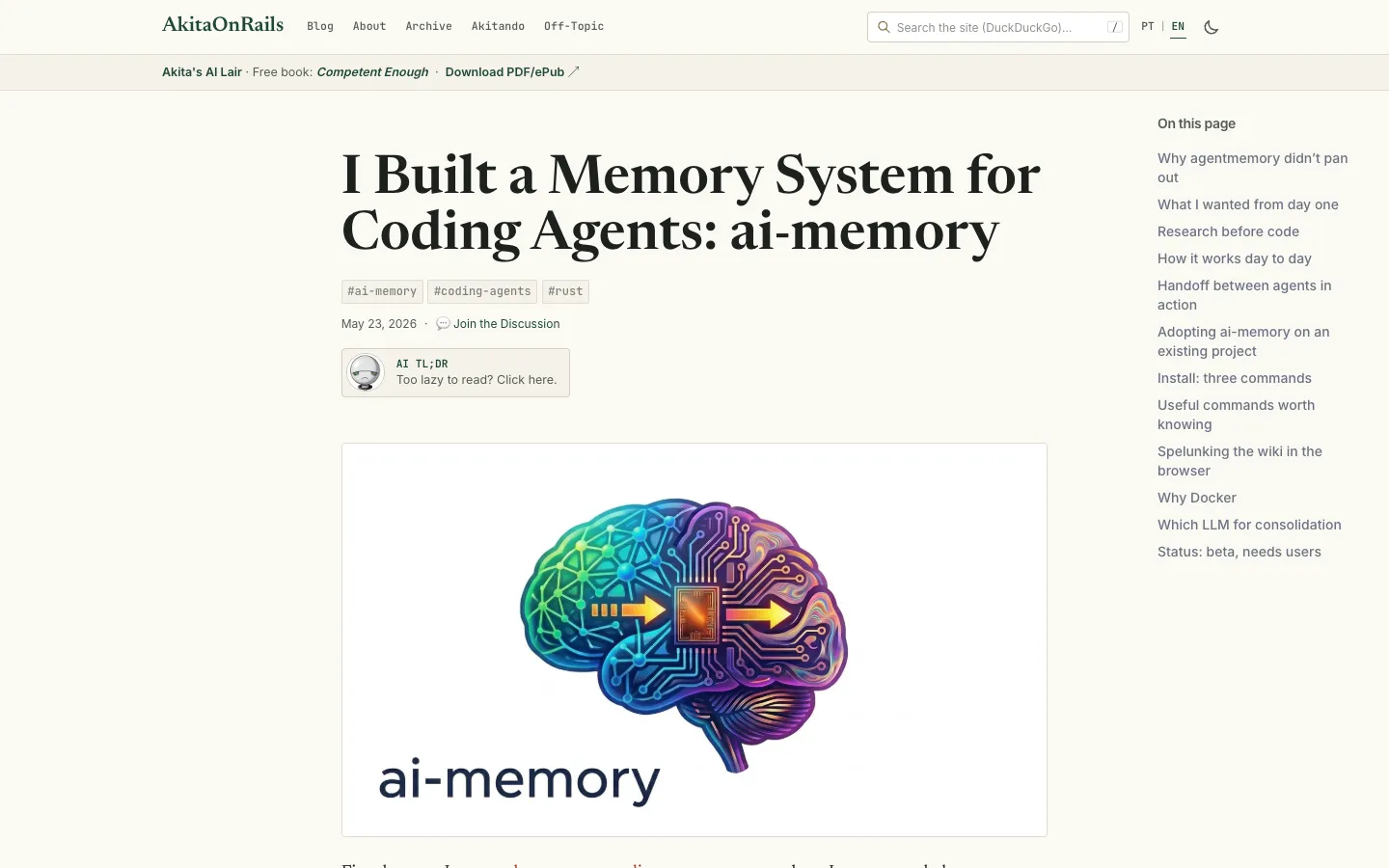
Akita’s post explaining why he built ai-memory, captured on 30/10/2026.
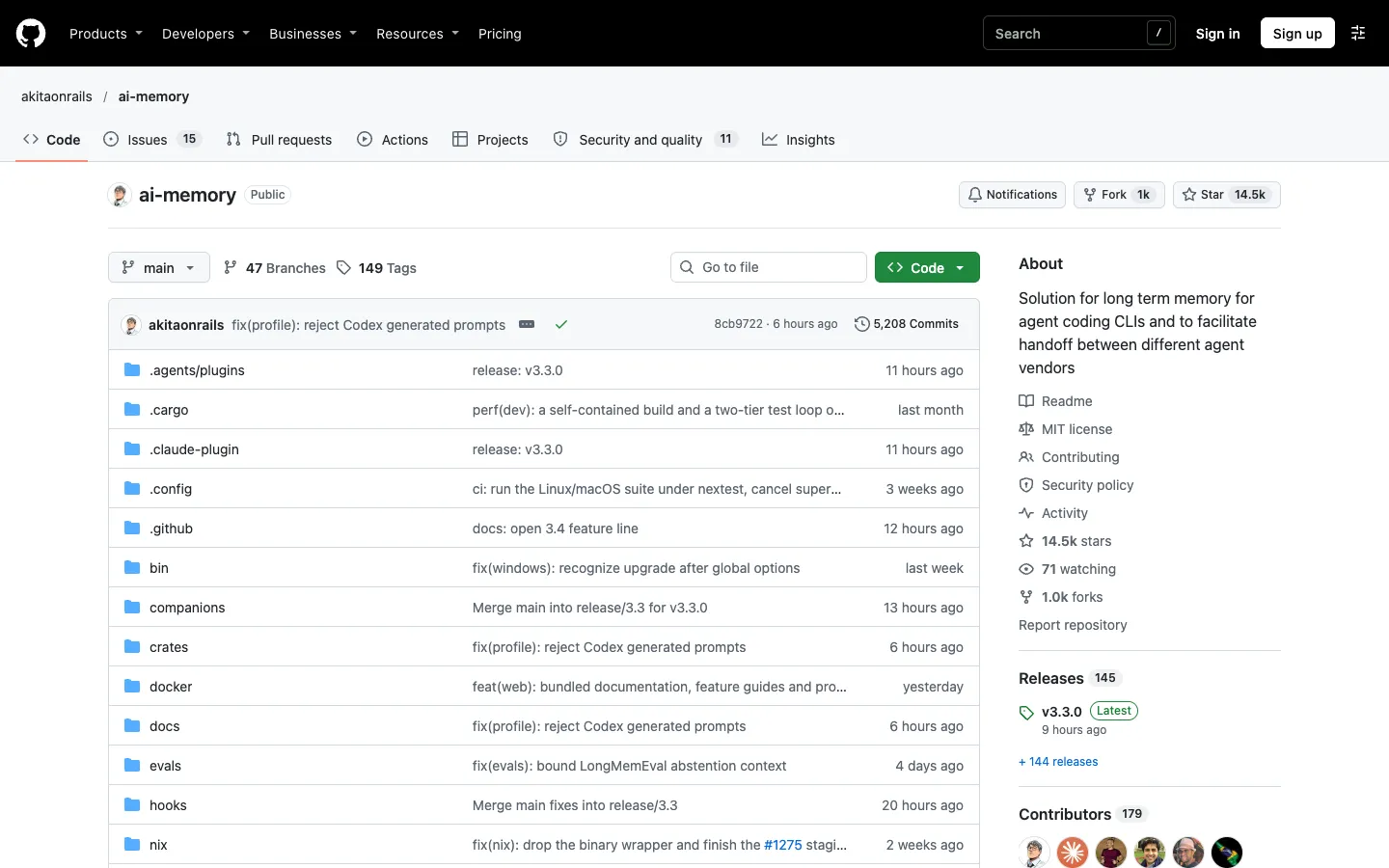
Public project page on GitHub, captured on 30/10/2026.
Comments
Have a question or something to add? Join the conversation.
No account needed. Select Sign in and choose a name to comment.
Loading the conversation…
Comment privacyCommenting guidelines