


Start with Handy for dictation, OpenCut for a simple edit in your browser, or Jan for chatting with an AI on your computer. None of those first tests needs a terminal. Leave OmniVoice and VideoLingo until later: they involve models, configuration, and, for VideoLingo translation, an API that may charge for usage.
The point is not to cancel everything today. Find a task you can complete without a subscription, save a real result, and only then decide which paid plan you no longer need. Free software is not automatically equivalent to a paid service.
Prices checked in the Brazilian App Store public in-app purchase lists on 15/10/2026, not a signed-in checkout. Captions also lists Basic at R$ 49.90; this comparison uses the reel’s R$ 59.90 listing. ChatGPT lists Plus at R$ 99.90 without explicitly identifying the interval in that public list: confirm monthly billing before comparing. Website prices and account offers can differ. These installation instructions come from documentation and HAVE NOT BEEN TESTED BY US. We do not claim to have installed these apps or measured their quality or speed.
What can replace part of each subscription
| Paid → alternative | Brazil App Store | Code / model | GitHub stars on 15/10/2026 | Setup |
|---|---|---|---|---|
| Wispr Flow Pro → Handy | R$ 30,00 | MIT | 33,799 | Installer |
| CapCut Pro → OpenCut | R$ 65,90 | MIT | 94,469 | Browser |
| ElevenLabs Creator → OmniVoice | R$ 149,90 | Apache-2.0 / CC-BY-NC | 14,571 | Terminal or online demo |
| Captions Basic → VideoLingo | R$ 59,90 | Apache-2.0 | 18,797 | Terminal (Windows: .bat) |
| ChatGPT Plus → Jan | R$ 99,90 | Apache-2.0 | 44,950 | Installer |
R$ 345.70/month without Captions; R$ 405.60/month with Captions. Reference basket total assuming monthly Plus billing is confirmed at checkout. Not guaranteed savings. (15/10/2026).
Price sources checked on 15/10/2026: Wispr Flow, CapCut, ElevenLabs, Captions, ChatGPT.
Before your first test
Use a file without sensitive information and keep the original. Leave space for model downloads: they can take several gigabytes. Download software only from the official sites and repositories linked here. If your system blocks an installer, check its source and compatibility; do not disable computer security to continue.
A model is the file that powers the AI. An API connects to another service, usually with a key and billing separate from a chat subscription. Localhost refers to your own computer: a page in a browser can be local while some of its functions still call online services.
Handy: turn your speech into text
The simplest test: dictate a message into a text editor without sending it to anyone.
- Visit handy.computer and download the installer for your operating system. On a Mac, install the app and open it from Applications.
- Allow microphone access. On macOS, also grant Accessibility access when requested: this lets Handy insert the transcription into the selected text field.
- Download a model supporting your language inside Handy. For Portuguese, a multilingual Whisper model is an option; do not select an English-only variant. Downloading needs internet, but local transcription works offline afterward.
- Open a text editor and click where you want to write. On Mac, the documented default shortcut is Option + Space; check Settings because it may have changed. On other systems, check the configured shortcut.
- Use the configured recording mode, say a short sentence, and stop recording. Read the text before using it. If the shortcut conflicts with another app, choose a different one in Handy.
Suggested test: say “Hi, I will arrive a little later. Can we talk afterward?” Check punctuation, names, and words in your language. Close and reopen Handy so you know how to repeat the process.
Honest limits: background noise, accents, and proper names can cause errors. Larger models take more memory and processing time. Dictation does not guarantee writing assistance equivalent to Wispr Flow. The privacy claim here applies to local transcription; enabling post-processing through an external service changes where data goes. Handy's code uses the MIT license.
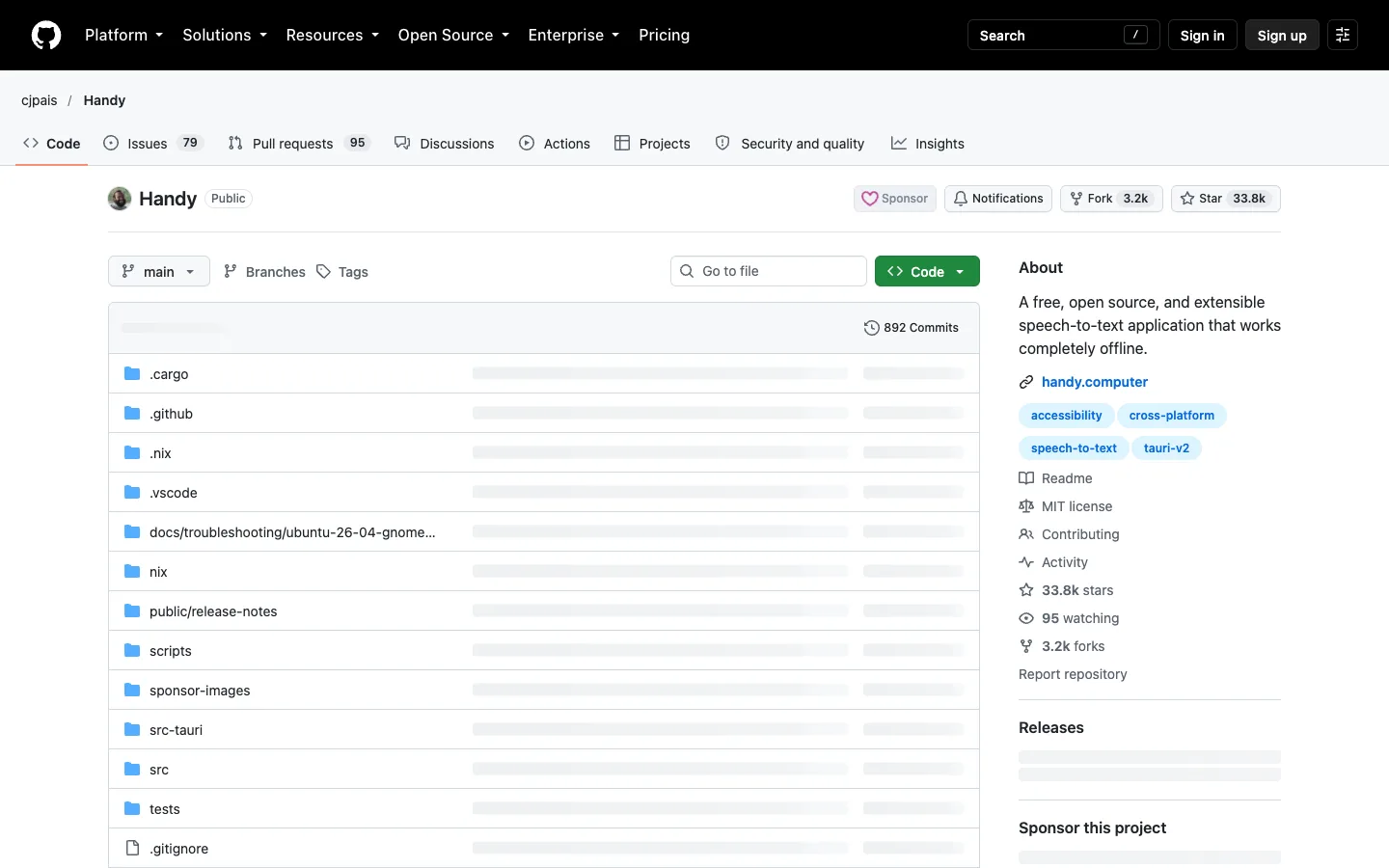
Official public page captured on 15/10/2026. Not a local application test.
OpenCut: make an edit in your browser
The simplest test: remove the beginning and end of your own video.
- Open the official site, opencut.app. For this first test, use the browser editor; do not look for a third-party installer.
- Enter the editor available on the site and create a project. Button labels may change during the beta.
- Import a short clip without private information. Place it on the timeline, the track where video segments are arranged.
- Drag the clip's edges to shorten its beginning and end. Play it back to check the cut and the audio.
- Use the available export option, download the result, and open the file outside the editor. Before starting a long project, confirm that the output format works for your destination.
Honest limits: OpenCut is in early beta and is a traditional video editor; we are not presenting it as a complete AI suite. Do not count on every CapCut Pro effect, template, captioning feature, or tool. Your browser, available memory, and file formats can limit projects. A browser session is not a backup. Read the editor's storage and privacy notices before importing client footage.
The official site processes edits in the browser. The live site uses archived classic while the main repository is being rewritten. For your first test, set 1080 × 1920 and keep the tab in the foreground until export finishes. Upstream advertises watermark-free export; we did not validate that export locally.
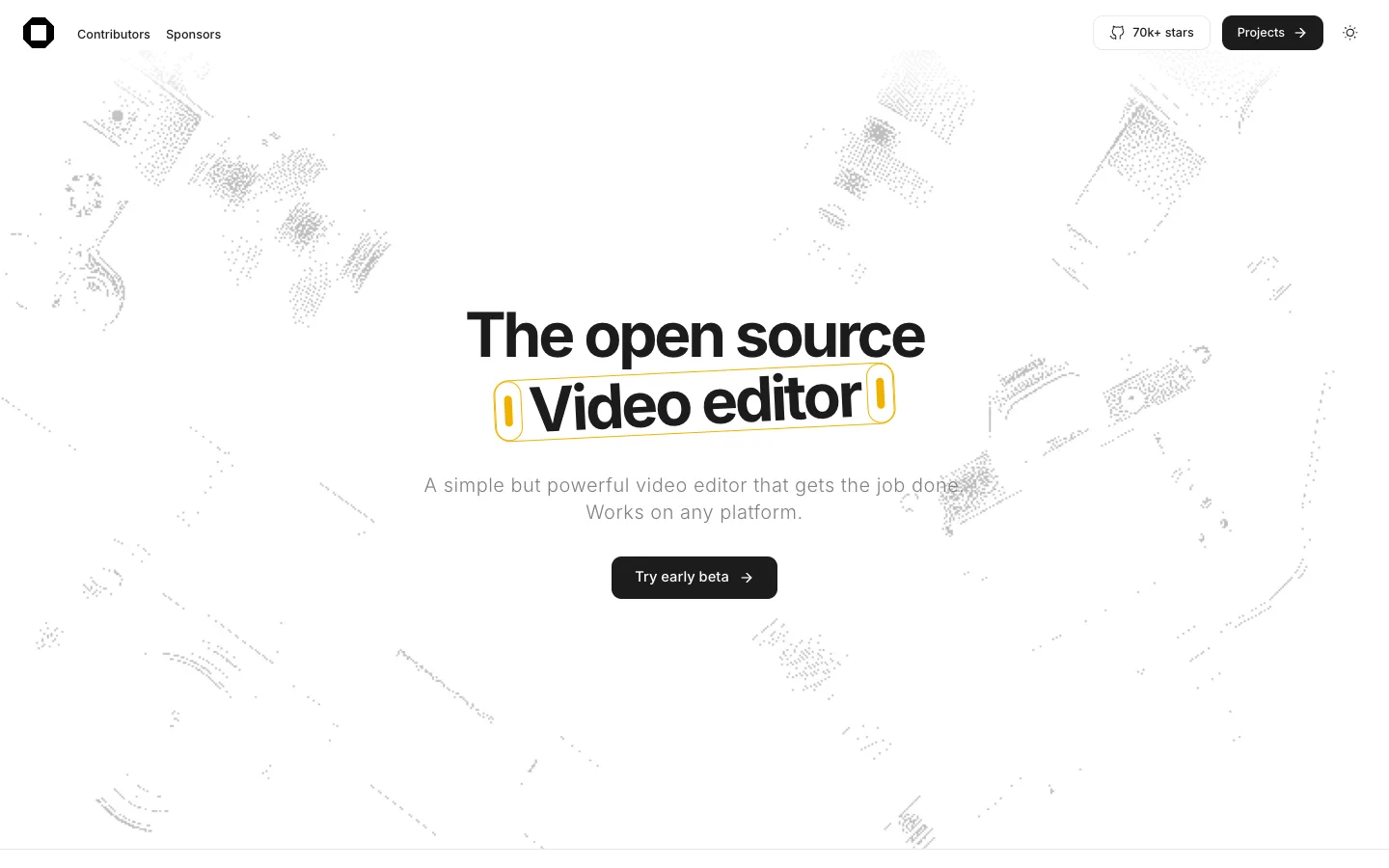
Official public page captured on 15/10/2026. Not a local application test.
OmniVoice: explore voice generation before installing
The simplest test: try the public Hugging Face demo, if available. This is an online service: do not upload private voice recordings. Queues, limits, or outages are possible.
- Read the license first. The code is Apache-2.0, but the model is CC-BY-NC, for noncommercial use. Do not use this route for ads, client work, or commercial content without appropriate separate permission.
- Write a short sentence in your target language. The project reports support for 600+ languages; that does not mean equal quality across all of them.
- For cloning, use 3–10 seconds of your own voice or a voice whose owner has explicitly authorized this use. Record without music, noise, or another person speaking.
- Select the demo's cloning function, upload the reference, and check its transcript if requested. Generate just one sentence for your first test.
- Listen to the entire recording. Check names, numbers, pronunciation, and unnatural sections. Download it only if it meets your noncommercial test's needs.
Honest limits: this is not a direct commercial replacement for ElevenLabs Creator. A short sample does not guarantee a faithful voice match. Cross-language cloning may retain the reference language's accent. Local installation requires downloads and memory; we do not promise performance on every computer. Do not clone people without consent or create recordings to impersonate them.
Want to keep the experiment on your own computer? The terminal instructions are separated below.
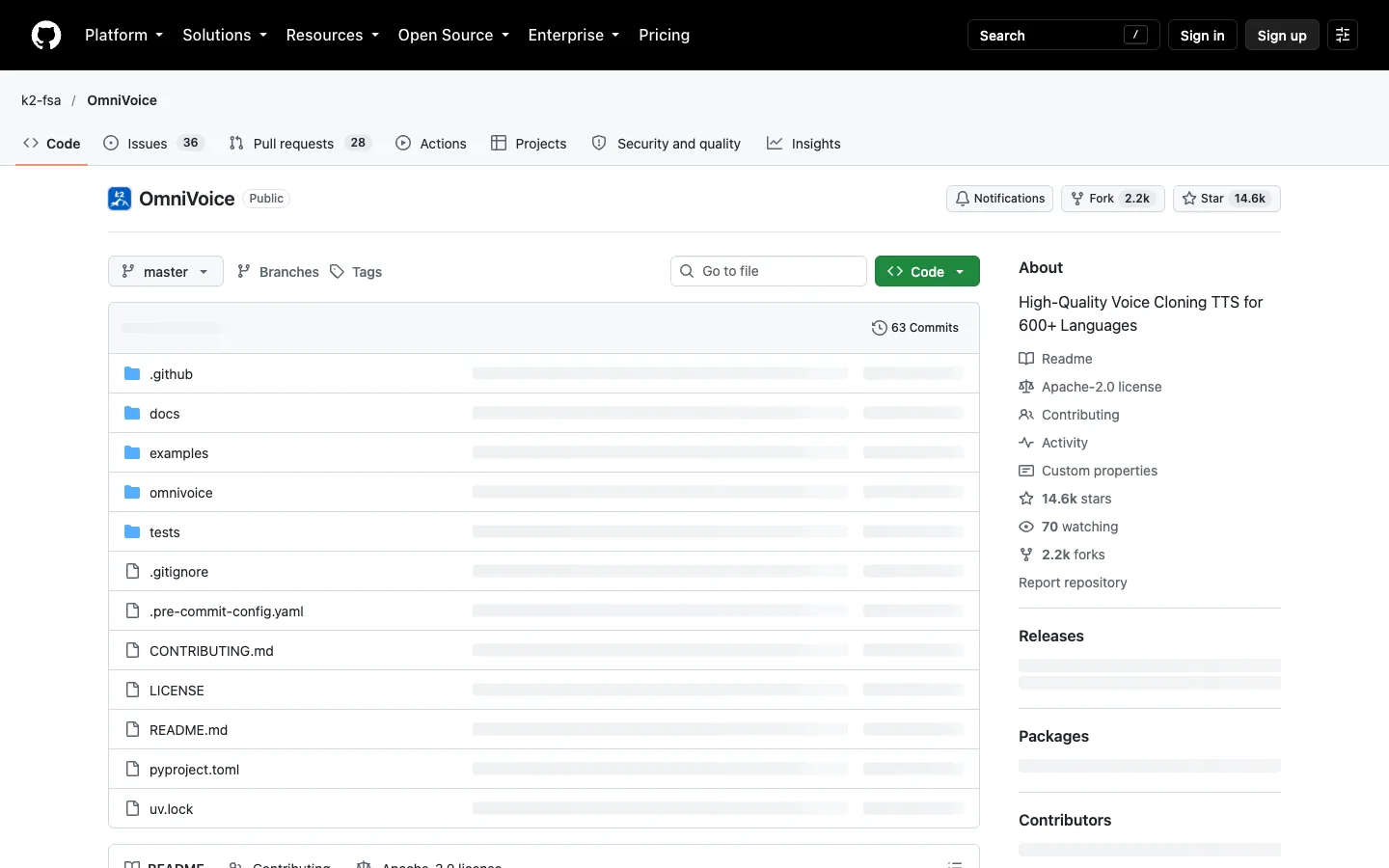
Official public page captured on 15/10/2026. Not a local application test.
VideoLingo: start with subtitles, not full dubbing
This step does require installation. If terminals are new to you, read the next section first. On Windows, the project offers OneKeyStart.bat; on Mac, use the uv route. This guide's reference requirement is macOS 14 or later; check current project compatibility.
- Open the VideoLingo documentation and choose the installation route for your system below.
- After starting it, keep the terminal window open and use the interface that opens in your browser.
- Configure a compatible API's URL, key, and model in the sidebar. Translation requires an API and may cost money. Choose a cheap API with a spending limit rather than relying on a local combination we have not tested. A ChatGPT subscription does not automatically include API credit.
- Import a short section of your own video, check the source language, and select the target language. Start with transcription and subtitles; correct names and terminology before translation and dubbing.
- Export the subtitles and check their timing against the video. Only then try a dubbing voice. Edge TTS is online: selecting it does not make the workflow offline or entirely private.
Honest limits: noise, overlapping speech, and mixed-language segments affect text and timing. Translations need human review. Dubbing may sound rushed and does not guarantee lip synchronization or a separate voice for every speaker. External services receive the data used at their stage and may charge. The app is Apache-2.0, but models and services have separate terms; the license does not grant rights to the original video.
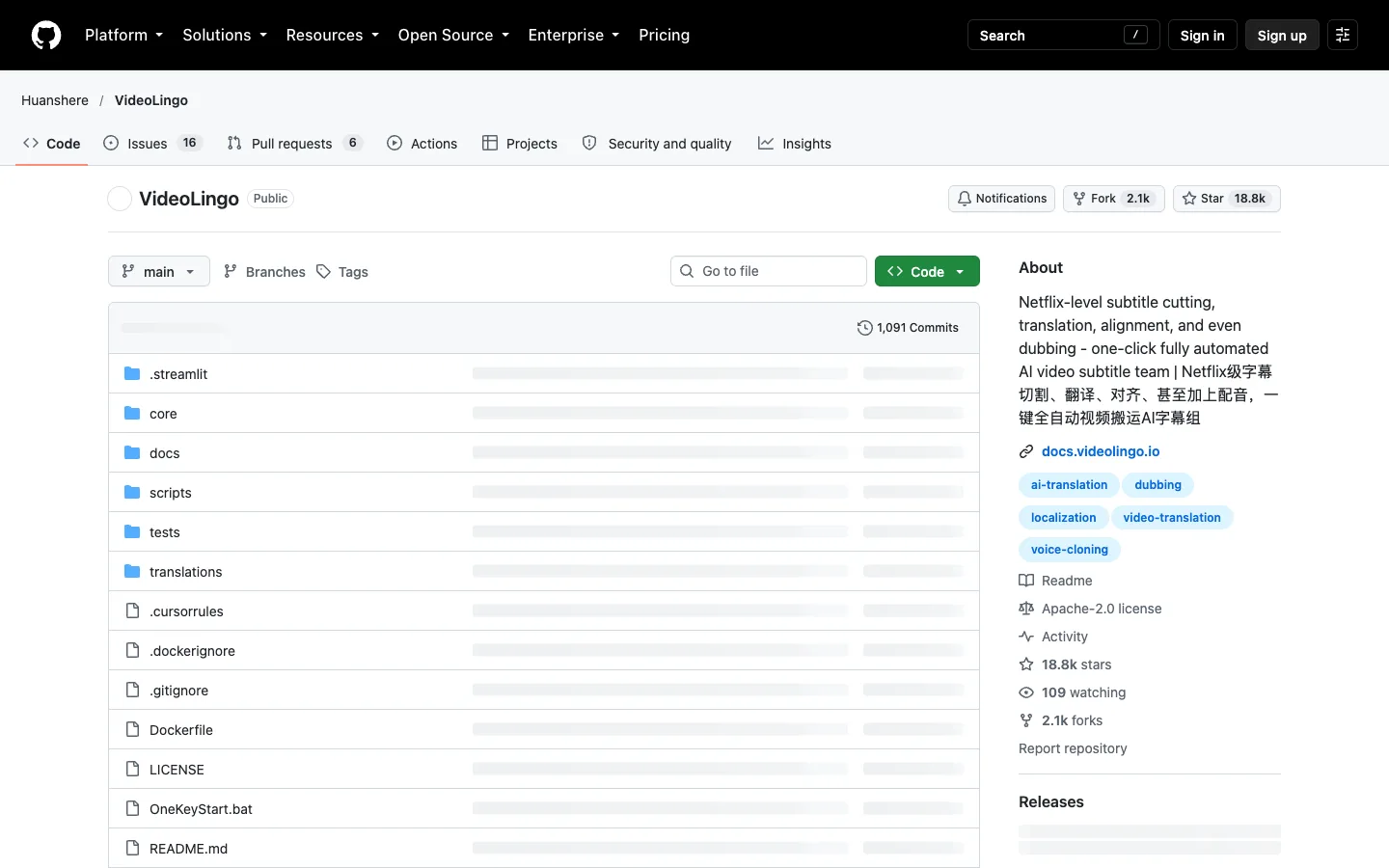
Official public page captured on 15/10/2026. Not a local application test.
Jan: chat with a model on your computer
The simplest test: request a short rewrite without searching the internet.
- Download the app from jan.ai. This guide's Mac reference is Apple Silicon with macOS 13.6 or later; check the documentation for Windows and Linux requirements.
- Install and open it. In the model area, choose a small local model to download instead of connecting a cloud provider.
- With 8 GB of RAM, start with a model around 3B, preferably a quantized variant recommended by the app. “3B” describes model size, not download size. It is not a speed guarantee: available memory and context length also matter.
- Select the downloaded model and open a chat. Ask: “Rewrite this message politely without inventing information: I cannot make today's meeting.”
- Review the response and ask a follow-up. To check local use, after downloading try a new conversation with internet disconnected, without web search, external tools, or a cloud provider.
Honest limits: a small model can get facts, reasoning, and language wrong. It does not promise ChatGPT Plus quality or its full feature set. Local privacy only applies in local mode, without web search or cloud services; connecting external services changes that. Downloading models needs internet and disk space. The Jan app is Apache-2.0; check each model's license separately.
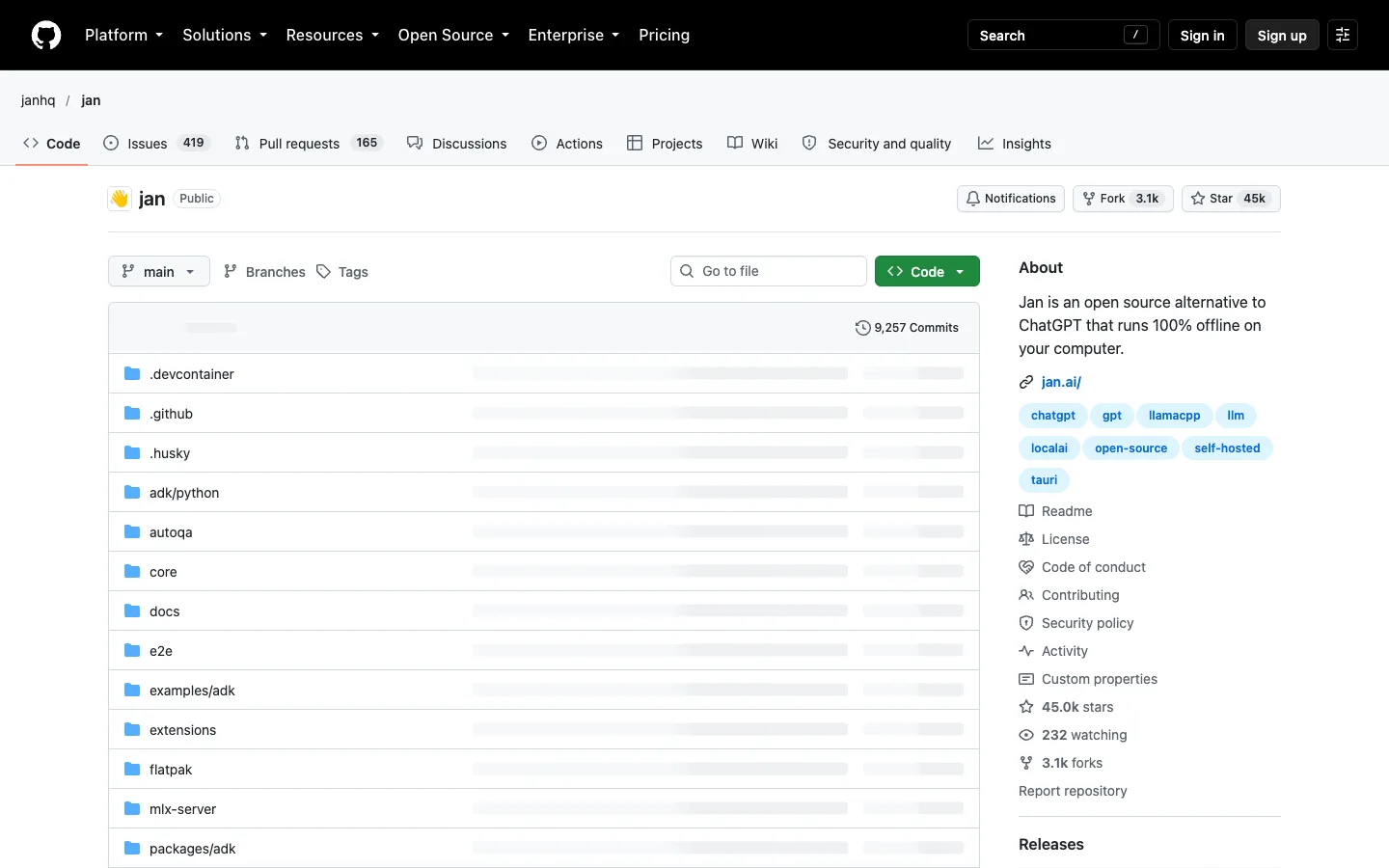
Official public page captured on 15/10/2026. Not a local application test.
Going further
This section is optional. Documentation-based commands — NOT TESTED BY US. They are not evidence of installations or results. The main route below is for the macOS Terminal, especially Apple Silicon. Do not paste Mac shell commands into PowerShell. Each block contains one command; copy it, run it, and wait for completion before continuing. If an error appears, stop there and save the message without your keys.
Prepare uv and an easy-to-find folder
On Mac, press Command + Space, type Terminal and open the app. Paste one block at a time and press Enter. Installation is one-time; later, use the reopening commands instead of installing again.
uv installs and manages Python and dependencies. A virtual environment, called .venv, keeps one app's packages separate from others. The official installer below downloads and executes a script: read the uv documentation and, if you prefer to inspect the script first, open its URL in your browser.
curl -LsSf https://astral.sh/uv/install.sh | sh
Open a new Terminal. To avoid PATH issues, we use the explicit path ~/.local/bin/uv, the installer's default location. If you chose another location, adjust the commands. Check it:
~/.local/bin/uv --version
Create the folder that will hold the apps:
mkdir -p ~/cauhi-apps
VideoLingo also needs Git. Check it before cloning; on Mac, the system may offer to install the command-line tools:
git --version
Handy: optional package-manager installation
The website installer is the recommended beginner route. If you already use Homebrew on Mac, the documented alternative is:
brew install --cask handy
On Windows, if you already use winget, run only this command in PowerShell:
winget install cjpais.Handy
These packages are not maintained by Handy's developers. Reopen the app from your applications menu, not the terminal. Source, releases, and known issues: cjpais/Handy on GitHub.
OpenCut: no local installation in this guide
Use opencut.app for the browser route. The OpenCut repository provides source code, licensing, and current development instructions. Hosting your own copy is a separate task, not a prerequisite for trimming a video. To return, open the site and check whether your project remains available; keep originals and exported files outside the browser.
OmniVoice: isolated Python 3.12 environment
This recipe uses the published package and the PyTorch/Torchaudio 2.8.0 pair documented for Apple Silicon. For NVIDIA/CUDA or another GPU, follow the PyTorch compatibility matrix and project README instead of copying a different platform's recipe.
mkdir -p ~/cauhi-apps/omnivoice
~/.local/bin/uv python install 3.12
~/.local/bin/uv venv --python 3.12 ~/cauhi-apps/omnivoice/.venv
~/.local/bin/uv pip install --python ~/cauhi-apps/omnivoice/.venv/bin/python torch==2.8.0 torchaudio==2.8.0
~/.local/bin/uv pip install --python ~/cauhi-apps/omnivoice/.venv/bin/python omnivoice
Enter the folder before starting:
cd ~/cauhi-apps/omnivoice
Start the interface listening only on your own computer:
~/cauhi-apps/omnivoice/.venv/bin/omnivoice-demo --ip 127.0.0.1 --port 8001
Wait for downloads and loading, then open http://127.0.0.1:8001. First use may download large models. Leave the terminal open. Press Control + C to stop. To reopen another day, enter the folder again and repeat only the last command; do not recreate the environment or reinstall everything. A local address does not change the model's noncommercial license.
Code and options: k2-fsa/OmniVoice. Model license and files: Hugging Face.
VideoLingo: install and reopen in the same folder
On Mac, after preparing uv and Git:
git clone https://github.com/Huanshere/VideoLingo.git ~/cauhi-apps/VideoLingo
cd ~/cauhi-apps/VideoLingo
~/.local/bin/uv run start.py
The launcher manages the Python environment and dependencies. Wait for it to finish, read any configuration prompts, and open the address shown in your terminal. We are not supplying an invented success message. If the folder already exists, do not clone over it: use your previous installation's folder.
To reopen another day, open Terminal and execute these two commands one at a time:
cd ~/cauhi-apps/VideoLingo
~/.local/bin/uv run start.py
On Windows, the documented alternative is to download Source code (zip) from the official release, extract it into a permanent folder, such as cauhi-apps inside your user folder, and double-click OneKeyStart.bat. Do not run it inside the ZIP. The first launch installs uv, Python 3.12, dependencies, and FFmpeg using the internet. To return, open the same file in the same folder. Keep the window open and configure your API in the interface.
The project documents recognition and dubbing options, plus Docker for advanced users. These do not guarantee that a Jan model or OmniVoice works as a drop-in replacement. For this first workflow, use a cheap compatible API with a limited budget. Documentation, Apache-2.0 license, and support: Huanshere/VideoLingo.
Jan: a local API is an option, not a proven integration
The graphical app is enough for chatting. If another program accepts an OpenAI-compatible API, Jan also offers a local server at http://localhost:1337; compatible clients' base URL commonly includes /v1. Enable the server in Jan's settings and check authentication and model names in the documentation before connecting a client. Keep the server restricted to your own computer.
We have not tested Jan + VideoLingo and do not promise that combination. API format compatibility does not guarantee the structured JSON, quality, or speed another application needs. If you need translation now, prefer a cheap compatible API and monitor usage. To reopen the chat, open Jan and select the model you already downloaded. Code and requirements: janhq/jan.
Quick FAQ
Do I need to know how to code?
Not for Handy, OpenCut or Jan. OmniVoice and VideoLingo require copying commands and changing settings, not writing a program. On Mac, open Terminal through Spotlight: Command + Space, type Terminal and press Enter. Installation is a one-time step; reopening the two apps also requires the commands below.
Does this work on my computer or phone?
This is a computer guide. Handy offers Mac, Windows and Linux installers. OpenCut runs in a browser, but these steps use a computer, not a phone app. Jan local models on Mac require Apple Silicon, not Intel. Upstream recommends 8 GB for roughly 3B models and 16 GB for 7B (15/10/2026). Model requirements vary. OmniVoice and VideoLingo are more demanding.
Can I use OmniVoice for paid work?
Not with the default CC-BY-NC model. Its noncommercial restriction differs from the code’s Apache-2.0 license.
Can I cancel all five subscriptions today?
Not on the strength of this guide. Complete a real task in each alternative, inspect the exported file, compare it with the paid features you use, and keep a backup. Check your next billing date and your plan's cancellation rules. OmniVoice in particular is not presented here as a commercial-use alternative.
Does “free” mean I will never pay anything?
No. Handy and Jan can perform the local tasks described without per-call charges after downloading. VideoLingo may incur API costs; Edge TTS needs internet. Models take storage and electricity. The monthly price references dated 15/10/2026 were checked in the Brazilian App Store and exclude these expenses.
Does everything work offline and stay on my computer?
No. Handy with local transcription and Jan with a local model, without cloud services, search, or external tools, are the offline routes described here. The public OmniVoice demo is online. VideoLingo can send text or audio to configured providers. A localhost address alone does not prove privacy.
What should I do about a terminal error?
Stop at the first command that fails. Check your system, folder, and uv path; a memory error calls for a smaller model or another computer, not random administrator commands. Search the official repository's issues for the message. When asking for help, include your system, command, and error, but remove API keys and personal information.
Which should I try first?
Handy is the shortest route without a terminal. Downloads and permissions can take longer than two minutes. Start with one Portuguese sentence.
Comments
Have a question or something to add? Join the conversation.
No account needed. Select Sign in and choose a name to comment.
Loading the conversation…
Comment privacyCommenting guidelines