

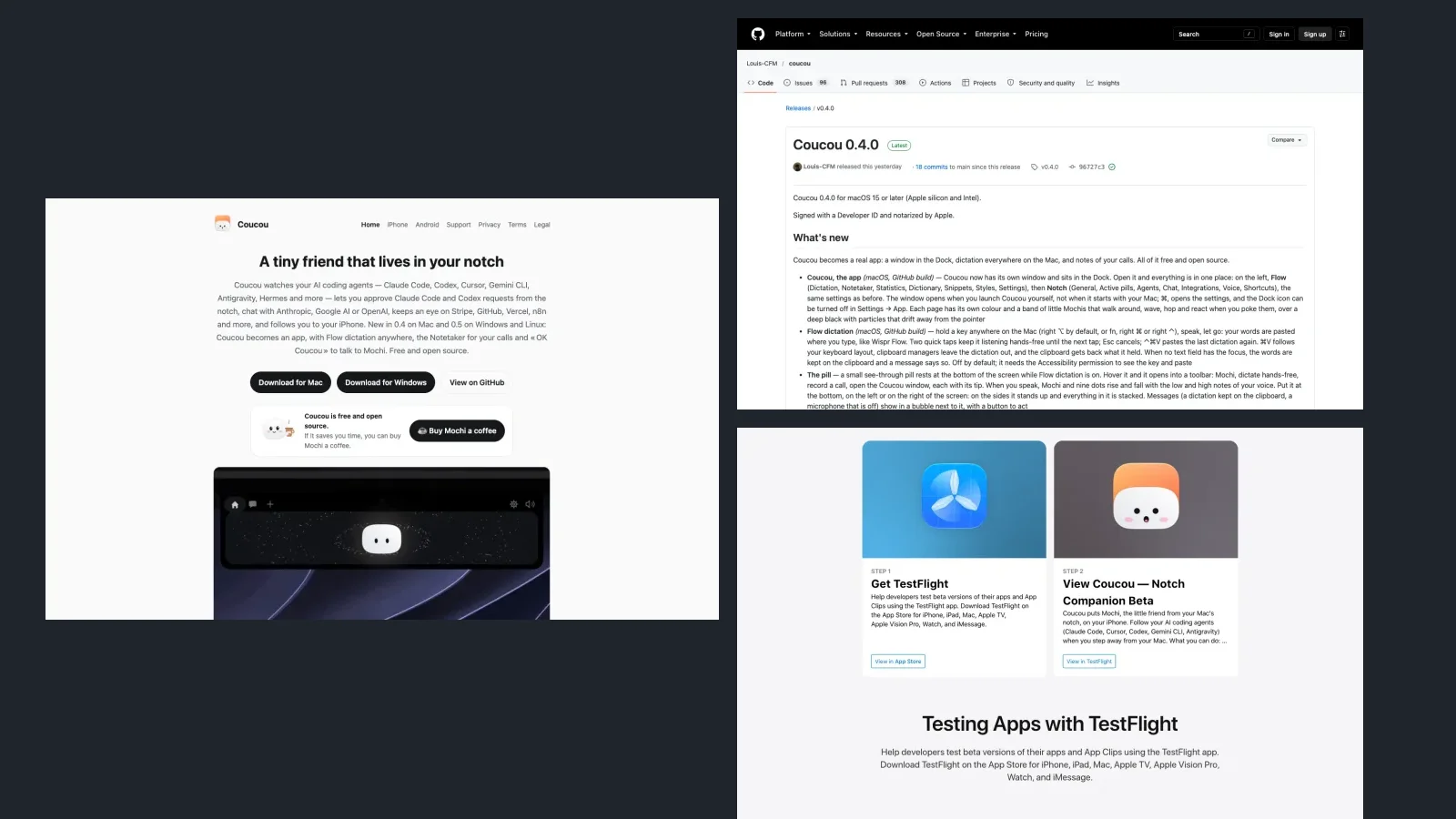

Coucou is a free desktop app with a tiny companion called Mochi at the top of your screen. It shows when your coding agent is working or waiting for your permission. Imagine Claude Code changing your shop website while you answer customers on WhatsApp: a request appears above your work instead of being hidden in another window. You still make the decision.
Only use ChatGPT in a browser? You can explore the demo, but Coucou does not turn ChatGPT into a coding agent or write your project for you. Real activity needs an agent such as Claude Code, Codex or Cursor already working on your computer.
The simplest path is to download the Mac app and open Demo. No terminal commands or API key required. These steps follow official documentation and are not tested by us. Images are real public-page captures, not evidence of our own app tests.
Open the official website and watch its demonstration.
Before downloading
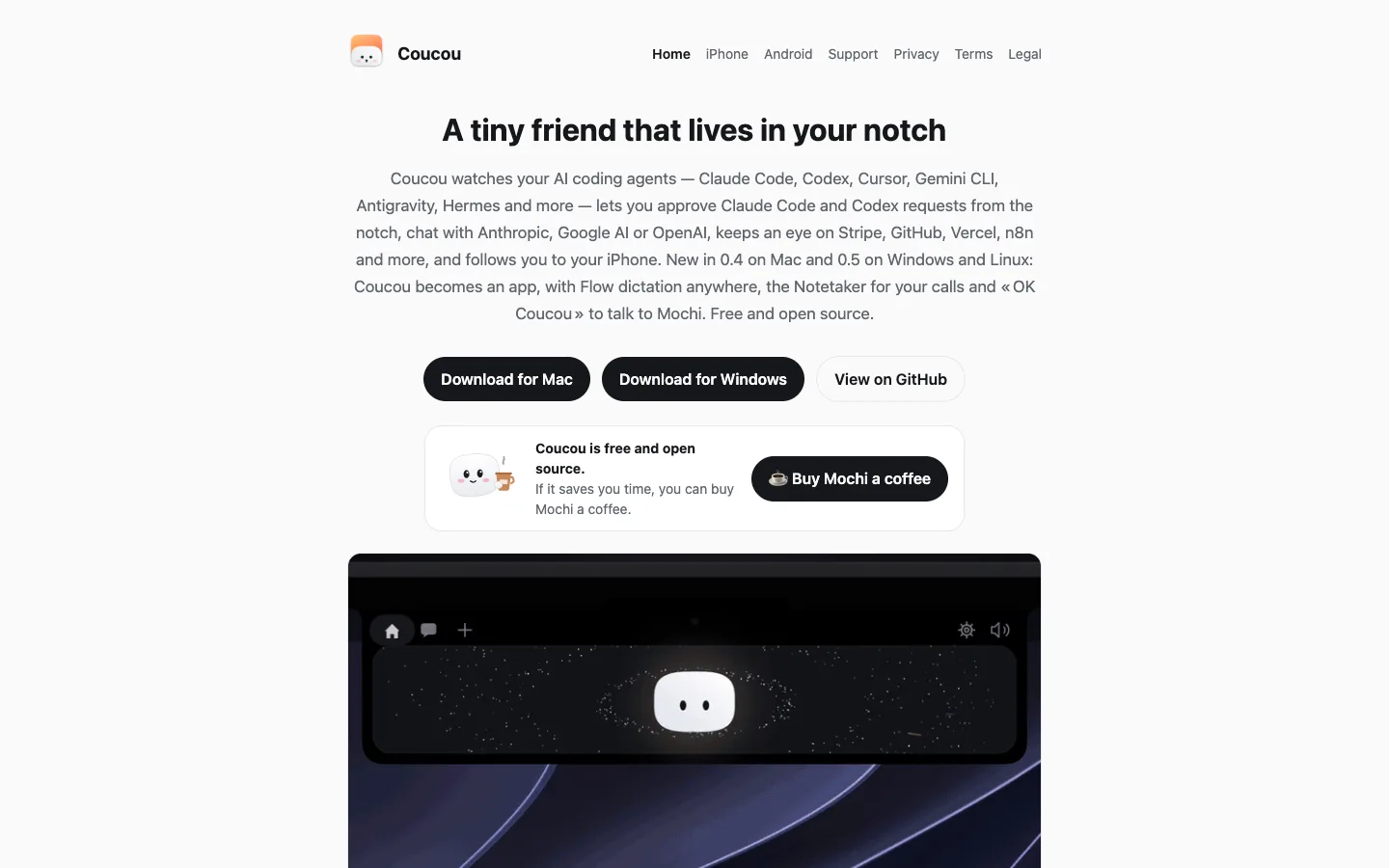
Checked 16/10/2026:
| Item | What matters |
|---|---|
| Price | Coucou is free. Your agent and optional APIs can have separate charges. |
| Mac | macOS 15+. No camera notch needed: Mac mini and iMac use a top bar. |
| Windows | Windows 10/11. Official installers are available but unsigned; SmartScreen may warn. |
| Linux | x86_64 AppImage, deb and rpm. Behaviour depends on your desktop environment. |
| iPhone | iOS 18+, a Mac running Coucou and the same Apple Account in iCloud. TestFlight beta, subject to availability. |
| Licence | MIT code. Name, Mochi, icon, sounds and media have separate reserved rights. |
Windows: the official website offers .msi and .exe installers. Download from its official link, open the file and follow the installer, then connect your agent in settings as in step 2. The author says installers are unsigned and a previous Defender detection was removed. We have not validated the binaries. An unknown-publisher warning is neither proof of malware nor proof of safety. Do not disable antivirus or dismiss a malware detection. Stop and ask for help if unsure of the source or blocked.
On Mac, download the app and try Demo
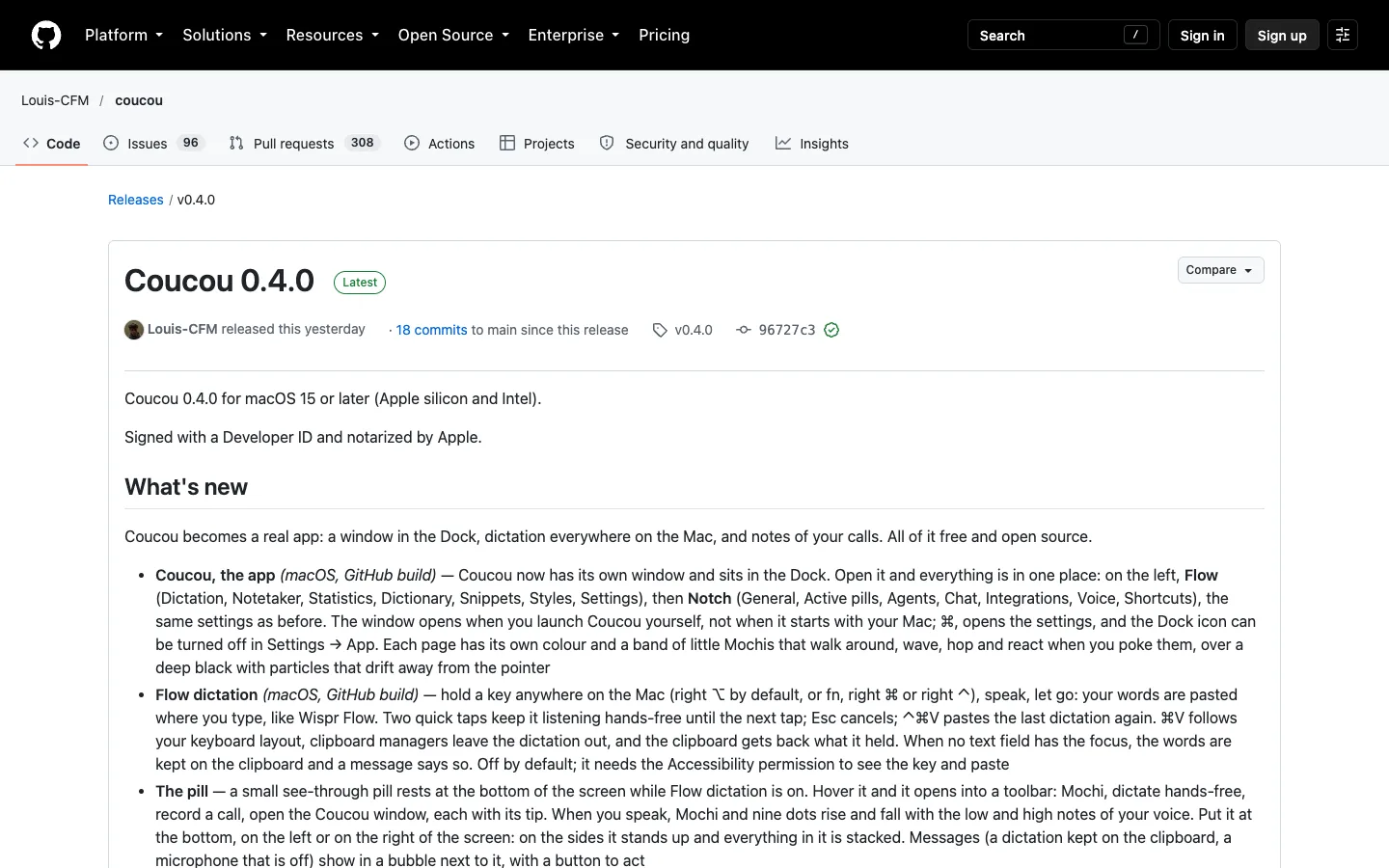
- Open the official Mac release. The verified version on 16/10/2026 was 0.4.0. Under Assets, select Coucou.zip, not “Source code”. Check the releases list for future versions.
- Unzip and move Coucou.app into Applications (
/Applications). - Launch it. For the ordinary downloaded-app confirmation, check the source and choose Open. For another block or a malware warning, stop and consult official support. Do not remove protections with a command.
- Open Coucou settings. In the new app window, island settings are under Notch. Find General → Demo → Try demo mode. Documentation also calls this Settings → General → Demo.
- Demo simulates a session, file changes and a permission request. It is not real agent work or proof that your agent is connected.
- Set your language under General → Language; Portuguese is supported. Labels and locations can change between versions.
Connect your agent and read before allowing
A hook is the small connector that tells Coucou what your agent is doing. Start with Claude Code:
- In Coucou settings, find Claude Code → Install hooks (or the Agents section).
- Review the proposed changes. Documentation says the installer backs up
~/.claude/settings.jsonand shows the additions before writing. - Start a new Claude Code session in a test project without customer data. Ask for a small, reviewable change. If your permission policy produces a request, check whether Mochi shows it. Do not weaken the agent's security just to create a notification.
- Read the requested file access or command. Claude Code shows Allow / Deny / Always. The app hides Always only for Codex, Copilot CLI and Muse Code, which show just Allow and Deny. Start with a one-time allowance. Always broadens permission; do not choose it by habit.
- Review the resulting project change. +N / −M means lines added and removed; click a file for its comparison when available.
Agent support is not universal approval support. Cursor is supported for activity, but not every Cursor action can be approved from Mochi. Windows/Linux documentation says Cursor approvals stay in Cursor; Claude Code in Cursor's terminal uses Claude Code hooks.
Nothing showing? Check hooks and update the app. Older Ghostty/iTerm2 reports (#54 and #239) were closed as of 16/10/2026, not verified current bugs. Try a VS Code/Cursor terminal and consult current issues. Seeing Mochi does not prove every session is connected.
iPhone: a Face ID beta, not a standalone agent
Documentation steps, not tested by us. Your Mac still does the work.
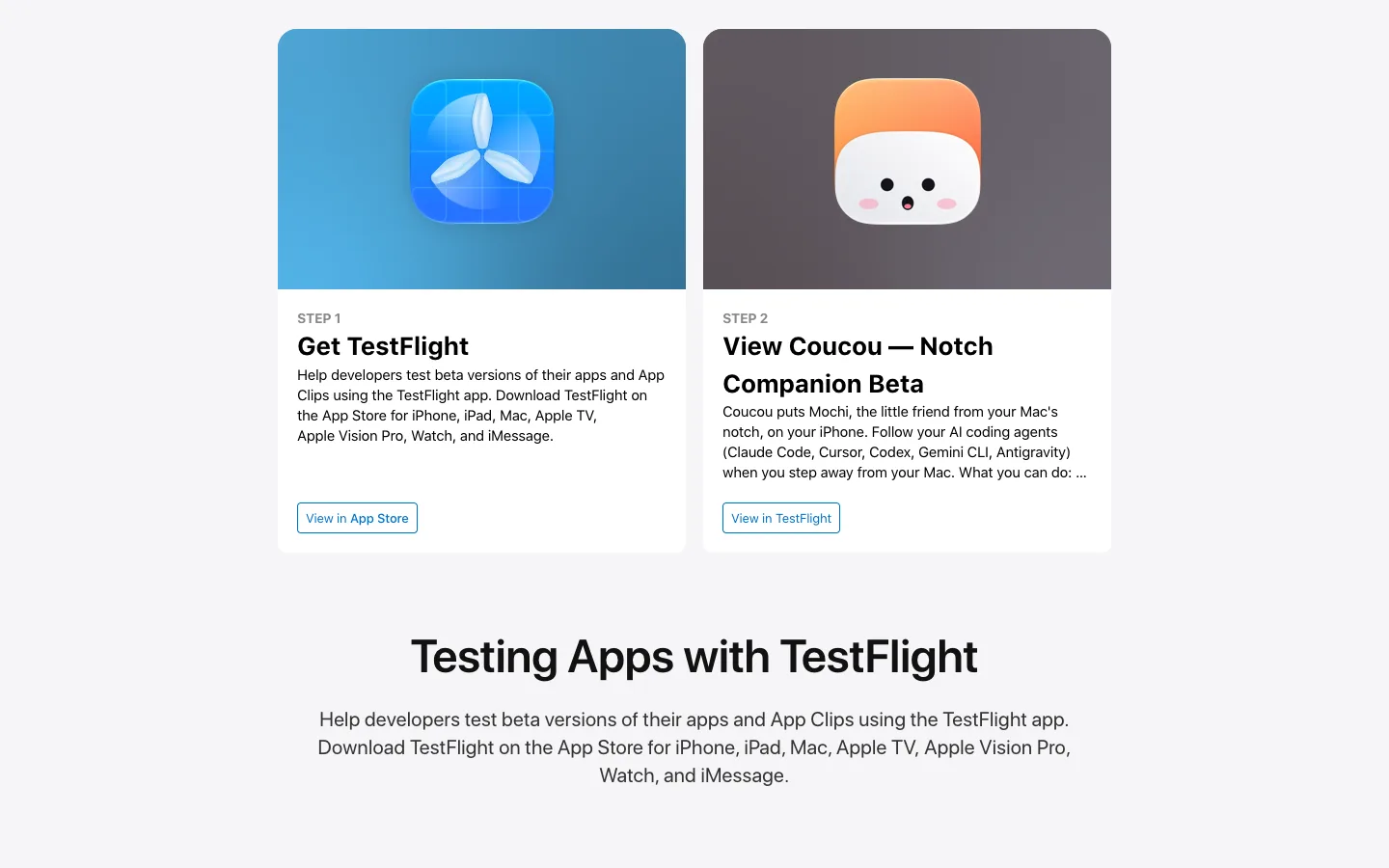
- Install Apple TestFlight on iPhone, then open the official Coucou invitation. Install if a build and tester slot are available. The public page described the beta on 16/10/2026; we did not enrol on a phone.
- Use the same Apple Account in iCloud on both devices. The documentation requires Mac Coucou 0.1.9 or later; prefer the current release.
- On Mac, open General → iPhone, enable Show my agent sessions on my iPhone and, for the Lock Screen, Move Mochi to my iPhone's Dynamic Island when my Mac is locked.
- Open the iPhone app and allow notifications. Start a Mac session. Keep the Mac awake, connected and running Coucou. Locking the screen is not shutting down or sleeping the computer.
- The README and TestFlight advertise Face ID on every Allow. The privacy policy is more specific: Face ID inside the app, or a phone unlocked by you for Lock Screen/notification actions. We cannot promise a fresh face scan on every shortcut tap. Read before authenticating. Dynamic Island needs an iPhone with that feature; Lock Screen activity does not require an Island.
The beta may be full or unavailable. The advertised 10,000-tester limit, checked 16/10/2026, is not a user count. Check notifications, Focus and Live Activities if nothing arrives. iOS can limit updates. Do not rely on this for time-critical approvals.
Going further
Installation, options and configuration
Full code and instructions: Louis-CFM/coucou on GitHub. An independent project by Louis Raillé, not an Anthropic or OpenAI product.
Other agents: Codex has Settings → Codex → Install hooks. OpenCode and Amp have a Plugin → Install option; Hermes uses Agents → Hermes → Install. Follow the README's supported-agent table for your OS and version. Do not overwrite your existing hooks or paste another agent's configuration.
Optional chat: no new API key is needed to explore Demo or install hooks. Built-in chat uses your own provider key, or a local Ollama/LM Studio server. Provider calls can cost money independently of your agent subscription. GitHub, Stripe and other service integrations are optional. Do not connect production credentials just to experiment.
Linux: download the appropriate package from Linux release 0.5.0, verified 16/10/2026. Check the project's checksums. In your download folder, use only the command for your package. Documentation commands, not tested by us.
AppImage: make executable, then open it in your file manager.
chmod +x Coucou-Linux-*.AppImage
Debian/Ubuntu:
sudo apt install ./Coucou-Linux-*.deb
Fedora:
sudo dnf install ./Coucou-Linux-*.rpm
Open the app and install agent hooks in settings. GNOME/Wayland and other desktops can differ in island placement, shortcuts and behaviour.
Build on Mac, optional: documentation requires macOS 15+, Xcode 16+ and XcodeGen. With Git and Homebrew already installed, run one command at a time. Not tested by us.
brew install xcodegen
git clone https://github.com/Louis-CFM/coucou.git
cd coucou/NotchBuddy
xcodegen
open NotchBuddy.xcodeproj
Choose the Mac scheme in Xcode and run with Command + R. Windows source builds require Rust, Node.js 20+ and MSVC tools; Linux also requires system libraries. Read the platform README. This is not a beginner shortcut or a safety guarantee.
Update beyond the reel: as of 16/10/2026, the README also documents Android 11+ paired with Windows/Linux on the same Wi-Fi. This is separate from iPhone/iCloud and does not pair with Mac. See the Android guide. Not tested by us.
Official sources
README · iPhone · Privacy · Licença / License
Quick FAQ
Do I need to code?
Not to install the app and explore Demo. Real use requires an existing coding agent and understanding what you are allowing. Coucou does not create those abilities for you.
Is it free?
As of 16/10/2026, Coucou and its beta are free. Code is MIT; Mochi and other assets have reserved rights. Claude Code, Codex, Cursor and optional APIs can charge separately.
Does it work on my computer or phone?
Mac with macOS 15+, Windows 10/11 with the signing caveat, and x86_64 Linux. iPhone with iOS 18+ is a Mac companion through the beta. Android has a separate Windows/Linux path. It is not a browser-only website.
Is it safe?
Open source is not an audit or guarantee. The project claims no telemetry or Coucou account; keys use the OS credential store. That does not mean nothing leaves your computer: iPhone sessions sync via iCloud with a relay for agent state; chat and integrations contact configured services. TestFlight has Apple's own data collection policy. Read requests, start in a test project and keep backups. Never disable security for the companion.
Does it approve automatically or work with the Mac off?
No. You decide, and the Mac must remain available for iPhone use. Connections, agent integration and permission policies limit what appears. No time savings or outcomes are guaranteed.
Comments
Have a question or something to add? Join the conversation.
No account needed. Select Sign in and choose a name to comment.
Loading the conversation…
Comment privacyCommenting guidelines