
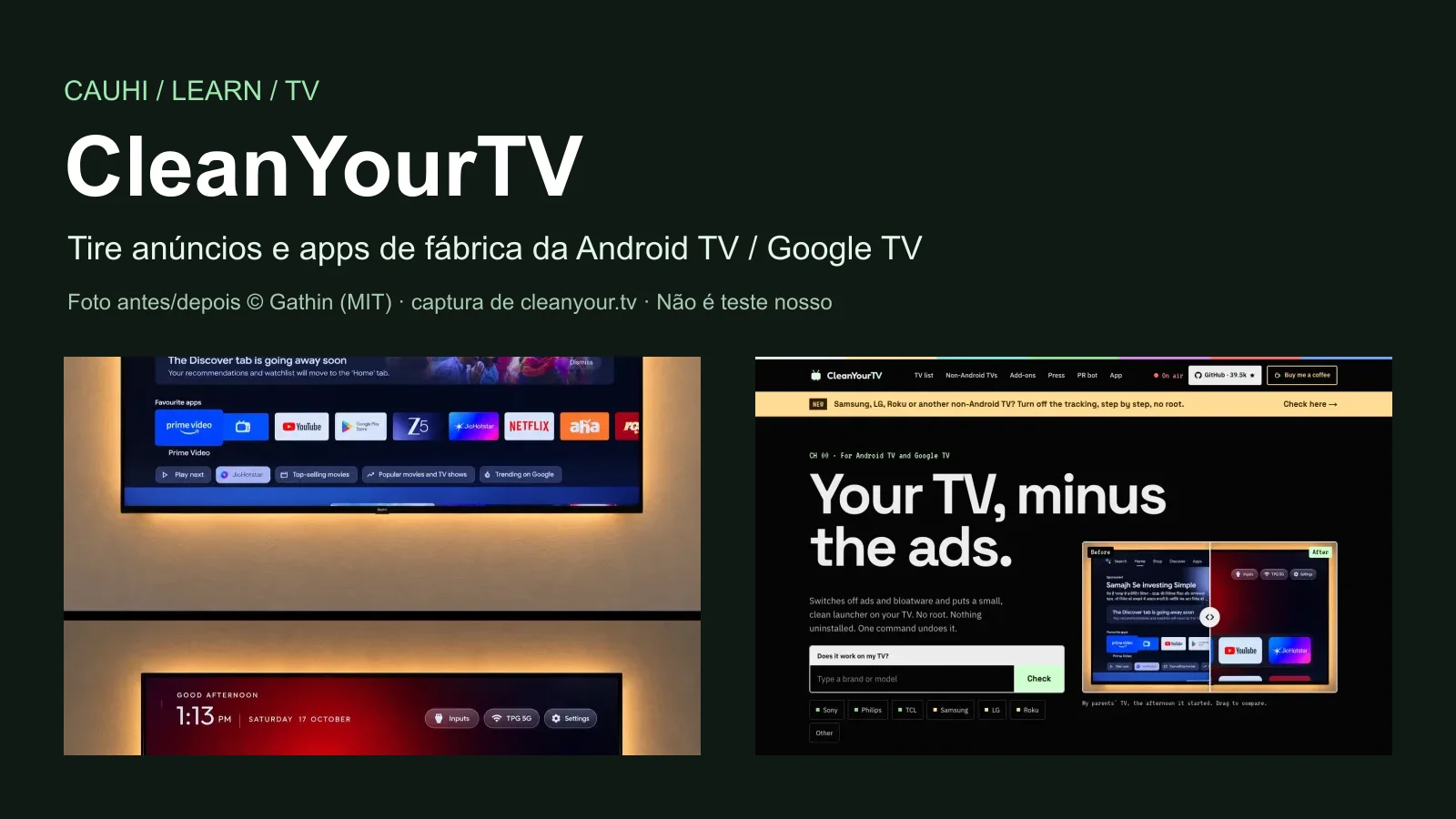

Commented TV? Here is the link and the walkthrough. CleanYourTV is a free, open-source project that switches off the ads, the factory apps and the tracking apps on an Android TV or Google TV and puts a clean, Apple TV-style home screen in their place. All over your home Wi-Fi.
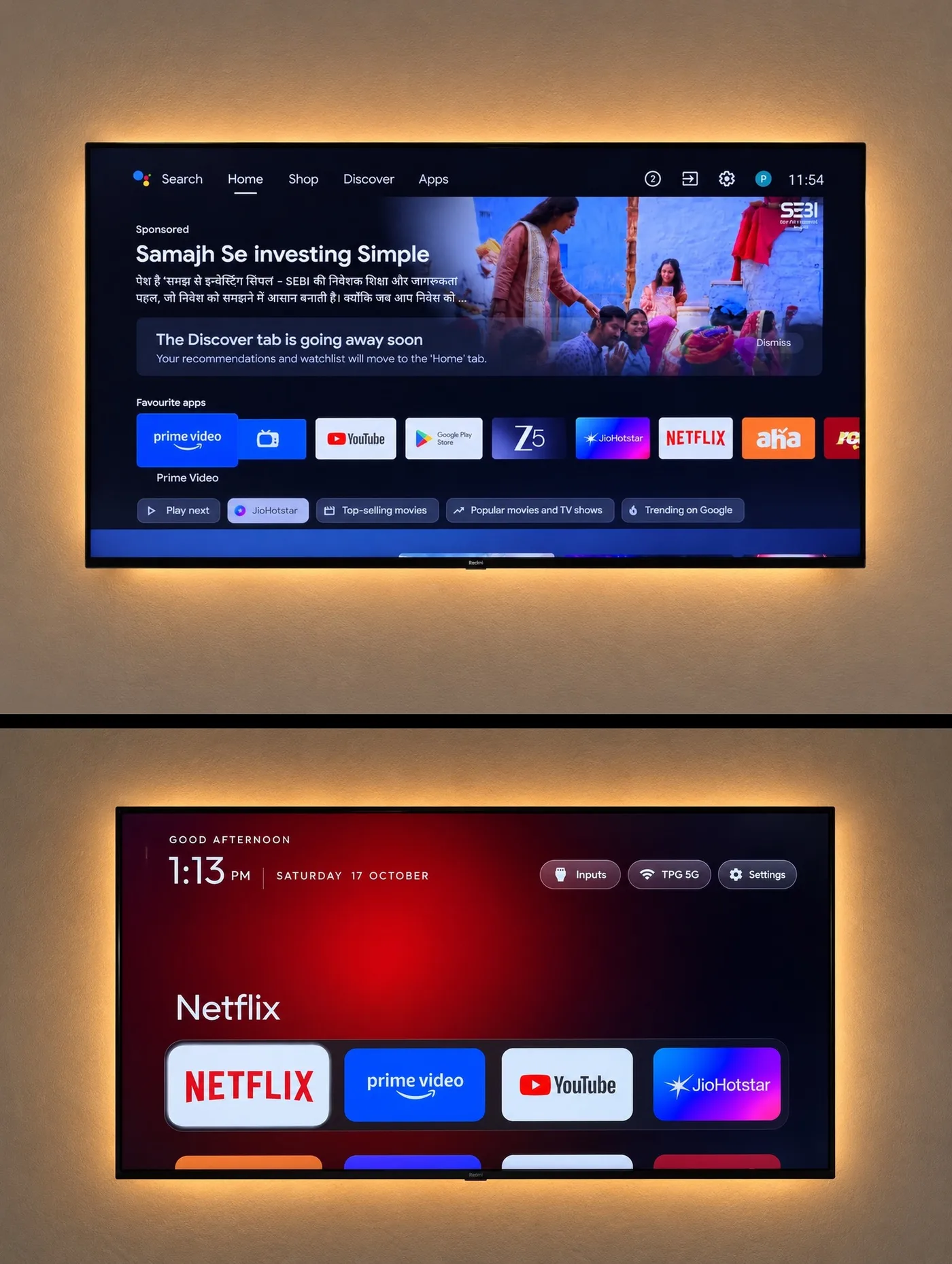
The before and after of the author's parents' TV (Gathin's own photo, MIT licence). Not our TV.
Four truths first:
- It only works on Android TV and Google TV. Samsung (Tizen), LG (webOS), Roku, Vizio and Hisense VIDAA are not Android: CleanYourTV does not run on them (see what you can do in step 1). Fire TV gets the clean-up only, without the new home screen. And it varies by model.
- The project is free (MIT licence). Claude Code, the agent that does the work on the computer path, is paid: on 27/10/2026 Claude Pro was US$ 20 per month billed monthly (claude.com/pricing). The community phone app is free.
- Giving the TV model is not enough. You have to switch on developer options and allow debugging (ADB) on the TV itself, with the remote. Without that, nothing gets in.
- The steps come from the official documentation and WERE NOT TESTED BY US. We did not connect to a TV or run the tools to write this guide. The images are screenshots of public pages and the author's own photos.
| What | Detail |
|---|---|
| Name | CleanYourTV (formerly tv-vibehack) |
| Made by | Gathin (@gathint on X), with more than 400 community contributors |
| Licence | MIT: free to use, copy and modify, keeping the licence notice |
| Works on | Android TV and Google TV. Fire TV: clean-up only. Samsung, LG and Roku: no |
| Community list | 335 models from 92 brands in the README on 27/10/2026 (lists tested by TV owners, not a certification) |
| What changes | Apps are disabled (pm disable-user), nothing is uninstalled. No root, no cable |
| How to undo | One command (tools/restore.sh) or, without a computer, the TV's Settings → Apps page |
What the author says (author's account)
In the project's README, Gathin says that on 17/10/2026 he posted on X a before and after of his parents' TV, cleaned up by Claude Code over Wi-Fi, and that the post “reached 7.4M views” (his number). Lots of people started doing the same, and their replies became the project's per-model lists. Original post: x.com/gathint/status/2111379569030939102.
How it works, in plain words
Every Android TV has a “maintenance door” called ADB (the same one Android phones have). Once you switch on debugging and allow it once, a computer or phone on the same network can:
- Back up the TV's app list and settings.
- Switch off what gets in the way: the brand's tracking apps (on the Xiaomi Mi TV 4A, for example,
com.miui.tv.analyticsandcom.xiaomi.statistic), ad and recommendation rows (com.mitv.tvhome.michannel,com.google.android.tvrecommendations) and preloaded apps (com.xiaomi.mimusic2,com.xiaomi.amazon.alexa). These are real entries from that model's list; every TV has its own. - Install a new home screen, black and light (about 532 KB), with a dock of your favourite apps, a clock and Inputs, Wi-Fi and Settings buttons.
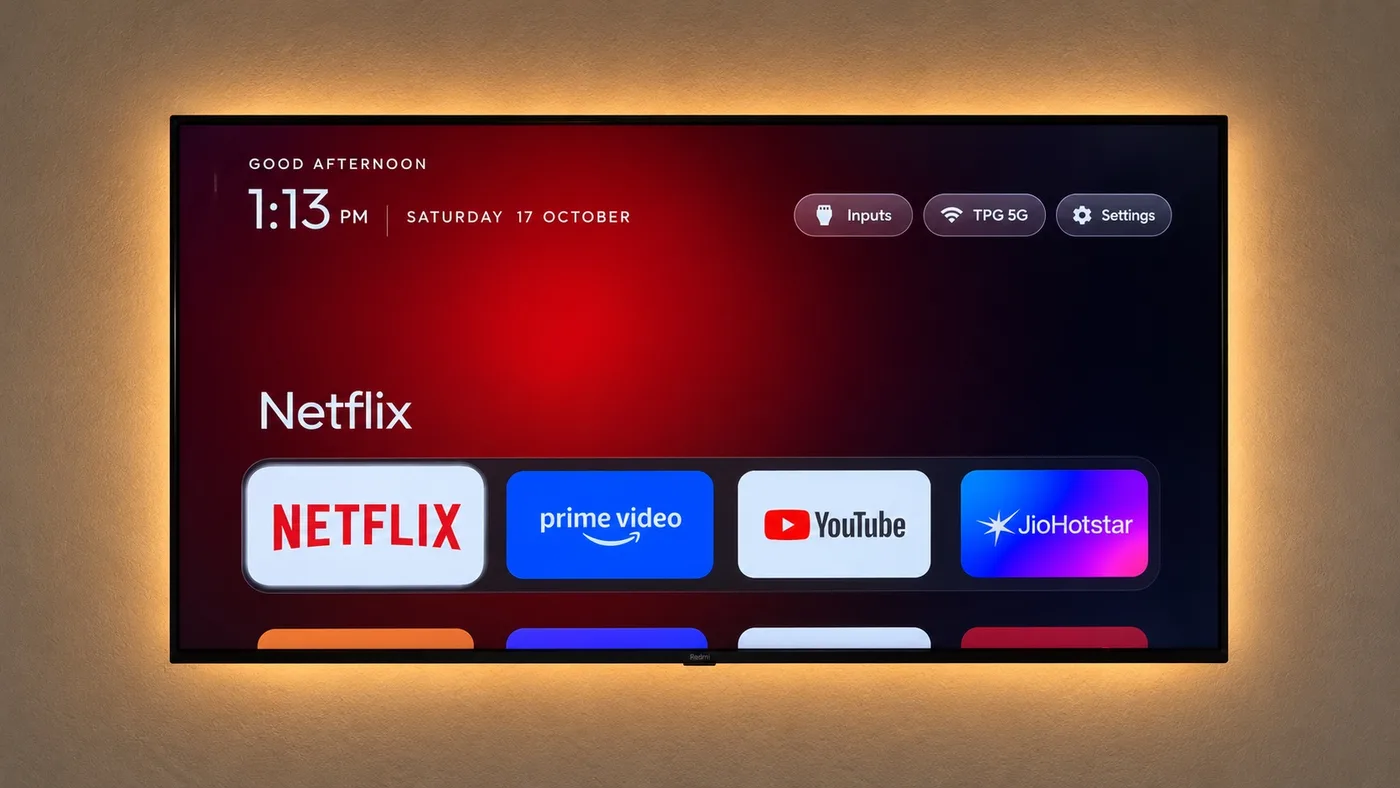
The new home screen, the project's own image (MIT). Not a capture of our TV.
The apps you use (Netflix, YouTube, Prime Video, live TV, HDMI) stay. Nothing is deleted: apps are switched off and can come back.
The simplest path (no coding)
Documentation step, not tested by us.
Check that your TV is Android TV or Google TV
- Open Settings on the TV and look for About (or System → About). If it says “Android TV OS” or “Google TV”, carry on.
- The home screen is a clue too: a Google TV logo or the Google Play store means Android.
- The community list (335 models on 27/10/2026) includes, for example, TCL, Sony, Xiaomi, Philips, Skyworth, Hisense (the Android models), Panasonic, XGIMI, Chromecast with Google TV and Mi Box. Same brand is no guarantee: every model and firmware is its own case. The project discovers what is on your TV and asks before touching anything.
Samsung, LG, Roku, Vizio or Hisense VIDAA? CleanYourTV does not run on them. The same author has a page, cleanyour.tv/not-android, that shows how to turn off the tracking with the remote, with nothing to install (it does not remove home-screen ads).
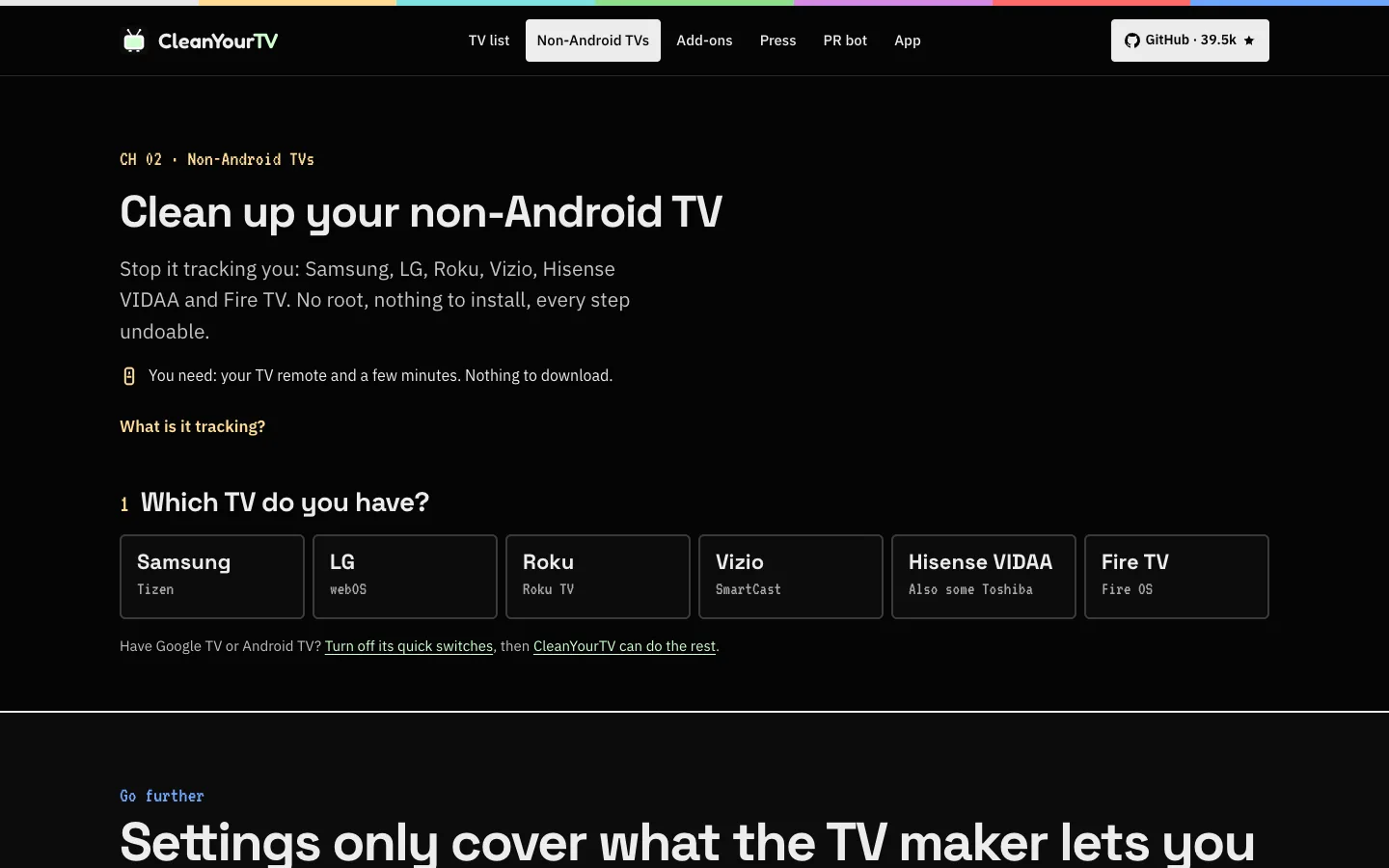
Public page for non-Android TVs, captured on 27/10/2026.
Unlock the TV with the remote
This is required on both paths. The project's README describes it like this (names vary a little by brand):
- Settings → Device Preferences → About (on Google TV it is usually Settings → System → About).
- Scroll to Build (or “Android TV OS build”) and press OK 7 times, until it says you are a developer.
- Go back into Developer options. Turn on USB debugging. If you see Network/ADB debugging or Wireless debugging, turn that on too.
- Keep the TV on. When “Allow USB debugging?” appears on screen, accept it only for the computer or phone you are using.
Heads up: some TVs cut power to their USB port while debugging is on (a drive or network adapter on USB can drop). Do it all in one sitting and switch debugging off at the end (step 4).
Clean the TV: with an Android phone or with Claude Code
Pick one path.
Path A: Android phone (no computer, no paid agent). A contributor, @udhaykumarbala, built a free, open-source (MIT) app that does the same clean-up over Wi-Fi. According to the app's page it shows the plan first, saves a restore point on the phone, only switches apps off and takes about five minutes. You need an Android 9 or newer phone with a screen lock on the same network as the TV. There is no iPhone version.
- On the Android phone, open cleanyour.tv/app/android and tap Download the APK (on 27/10/2026 the newest published release was v0.4.0).
- Open the downloaded file and allow the install. Because it is an APK from outside the Play Store, Android asks for permission (“unknown sources”). The page says Google Play and F-Droid versions are on the way.
- Open the app and follow its three screens: Connect (accept the prompt on the TV), Analyse (nothing changes yet, it shows what it will switch off) and Clean (“Make it clean”).
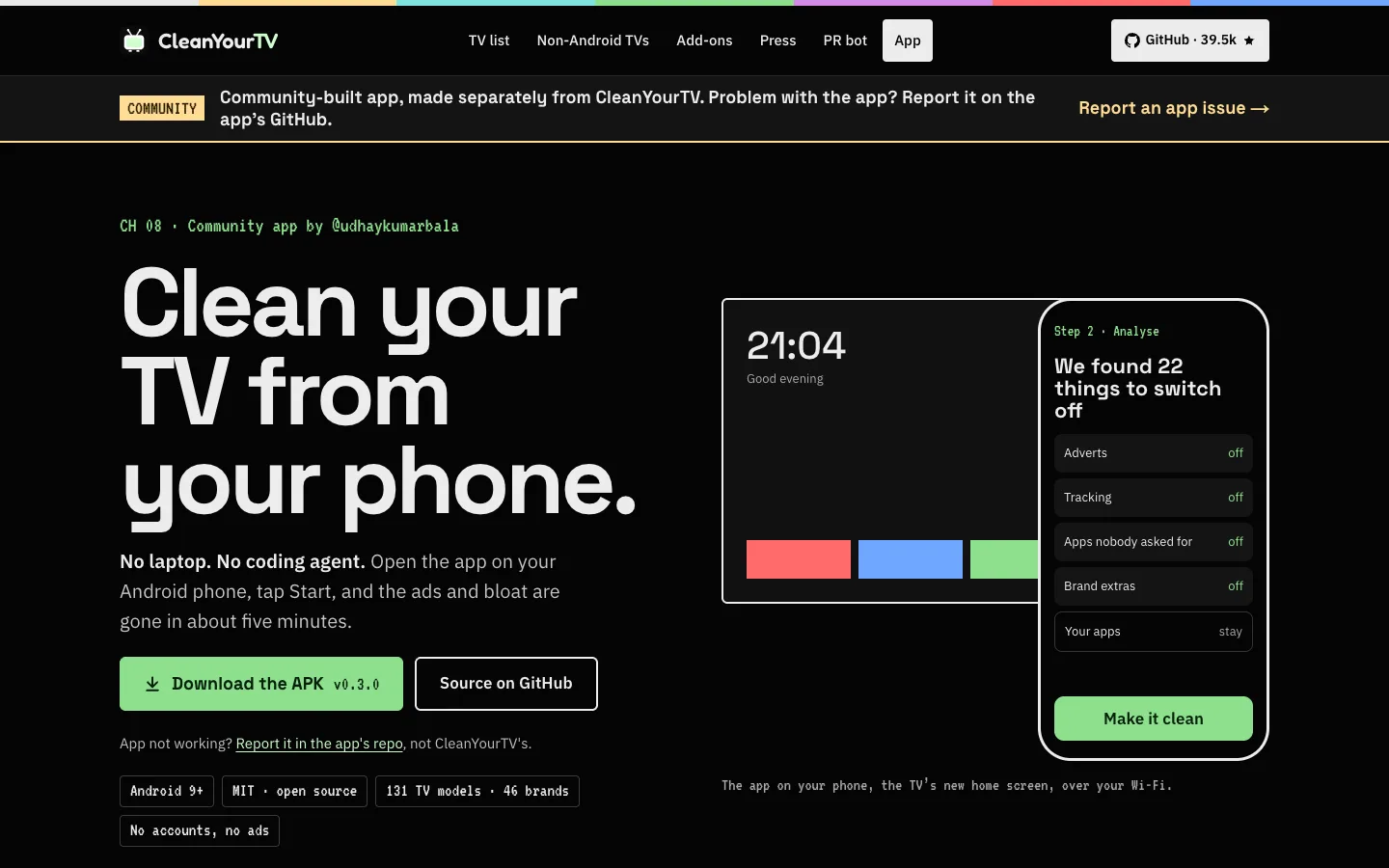
Public page of the community app, captured on 27/10/2026. The app is a separate project from CleanYourTV, by someone else; problems with it go to the app's repository.
Path B: computer + Claude Code (the path in the video). You need a computer (Mac, Windows or Linux) on the same Wi-Fi as the TV and a paid Claude plan with Claude Code (the README also mentions Codex and Gemini CLI).
- Subscribe to a plan with Claude Code (claude.com/pricing: on 27/10/2026, Pro US$ 20/month billed monthly; the Free plan does not include Claude Code) and install the Claude desktop app from the official Claude Code Desktop page. According to Anthropic, the app includes Claude Code in its Code tab.
- Download our copy of the project (MIT, unchanged, with the prompt, the tools, the home screen and the community lists): CleanYourTV, copy of 27/10/2026 (ZIP, 5.3 MB) · MIT licence. Unzip it: you get a
cleanyourtvfolder. - In the Claude app, Code tab, Local environment, Open folder… and pick the
cleanyourtvfolder. Leave permissions on Manual and read each request before approving. - Paste this request and replace the model with your TV's (it is on the label on the back of the TV or in Settings → About):
Read PROMPT.md in this folder and follow its instructions, using the tools in tools/ and launcher/ from this folder. My TV model is: <YOUR TV MODEL>It is an example request written by us, pointing to the author's official prompt (PROMPT.md, full text here). According to the README, the assistant finds the TV on the network, backs it up, asks which apps you use, how many apps you want in the dock and whether to keep the voice assistant, Chromecast and updates, switches the rest off in batches, installs the new home screen and checks each step with screenshots from the TV itself. With the project as context it takes about fifteen minutes (the author's estimate).
- Accept “Allow USB debugging?” on the TV when Claude tells you, and answer its questions.
On a Mac: if you see “No route to host”, it is macOS Local Network privacy blocking adb. The prompt already tells the assistant to use another client (tools/tv.py) in that case.
At the end, close the door
The README is clear: network debugging (port 5555) has no password or encryption, and on some firmware any device on the network can get in. So when you are done:
- On the TV, in Developer options: turn off USB debugging, Network/ADB debugging and Wireless debugging (whichever exist) and revoke USB debugging authorisations.
- Restart the TV. The new home screen keeps working without debugging.
- Never open the TV's ADB port to the internet (for example, on the router). To clean a TV in another home, the project points to a private Tailscale connection (see “Going further”).
If you don't like it: how to go back
- Phone app: open the app again and use undo (one app or everything), from the restore point.
- Computer: one command, with the same list that was applied (replace the IP and your TV's folder name):
TV_HOST=192.168.1.50 tools/restore.sh examples/<your-tv>/debloat.txt- No computer: on the TV itself, Settings → Apps can re-enable each app.
Going back is not risk-free. The README says that if the TV no longer starts far enough for that, the way back is usually a factory reset from the recovery menu (which also wipes your own apps and accounts). There are reports of such cases and of TVs where disabling Google TV's setup wizard dropped the saved Wi-Fi network or phone casting (Chromecast and Google TV Streamer). That is why the project works in small batches and asks first.
What is true (and what the video simplified)
- “More than 7 million views”: it is the author's own number (README: 7.4M on the 17/10/2026 post).
- “All he did was give it the TV model”: besides the model, you have to switch on developer options and allow debugging on the TV. The model alone gives no access.
- “Switched off the ads and even the tracking”: it disables the known tracking and ad packages for that model. It does not guarantee removing all tracking and does not remove YouTube ads, which come from the same servers as the videos (README).
- “Any Android or Google TV”: an overstatement. These are community lists, per model. Fire TV gets the clean-up only (no new home screen); some China-market TCL sets refuse the new home screen; Samsung, LG and Roku do not run it.
- “More than 330 models and more than 90 brands”: on 27/10/2026 the README listed 335 models from 92 brands (the video used 332 and 91, an earlier count from the same day; the number changes daily). They are lists from people who tested their own TV, not a certification.
- “Free”: the project is free (MIT) and so is the phone app. Claude Code is paid.
- “Undo it all with one command”:
tools/restore.shexists and nothing is uninstalled, but restoring is not guaranteed or risk-free (see above).
Going further
Optional, for terminal users or for doing it without an agent, by hand. Commands from the project's README (commit of 27/10/2026), documentation step, not tested by us. Run one command at a time inside the cleanyourtv folder (from our ZIP or from git clone).
1. Get the project. From our ZIP (above) or with git:
git clone https://github.com/Gathin23/cleanyourtvcd cleanyourtv2. Set up the tools (Python 3 only). Mac and Linux:
python3 -m venv tools/venv && tools/venv/bin/pip install -r tools/requirements.txt3. Set the TV's IP (in the TV's Settings → Network; replace the number):
export TV_HOST=192.168.1.504. Probe the TV (model, Android version, firmware):
tools/venv/bin/python -I tools/tv.py --probe5. Apply your model's list. Lists live in examples/, one folder per model, with a note on each line. Example with the Xiaomi Mi TV 4A (use your TV's folder; if there is none, take the agent path, which discovers what is on the TV):
tools/disable.sh examples/xiaomi-mi-tv-4a/debloat.txtBefore changing anything, disable.sh records how the TV was in ~/.cleanyourtv/, and it refuses to leave the TV without a home screen.
6. Install the new home screen (needs JDK 17 and Android SDK 34 on the computer; on a Mac, brew install openjdk@17 android-commandlinetools):
TV_HOST=192.168.1.50 launcher/build-and-install.shThe TV needs Android 8.0 or newer. The script checks the version before building and rolls back if the new home screen does not take over.
7. Undo (Android TV; on Google TV, add com.google.android.apps.tv.launcherx at the end):
TV_HOST=192.168.1.50 tools/restore.sh examples/xiaomi-mi-tv-4a/debloat.txt8. After a TV update, some apps come back. To see what changed (--fix reapplies):
tools/venv/bin/python -I tools/check.py examples/xiaomi-mi-tv-4a/debloat.txt9. Confirm the port is closed after switching debugging off and restarting the TV (it must say closed):
python3 tools/adb-closed.py 192.168.1.50Windows (PowerShell): every script has a .ps1 twin next to it, for example powershell -ExecutionPolicy Bypass -File tools\disable.ps1 -TvHost 192.168.1.50 examples\xiaomi-mi-tv-4a\debloat.txt.
Extras the README documents:
- Blocking ads inside apps (partly): ad-blocking Private DNS (Android 9+), with
tools/tv.py 'settings put global private_dns_specifier dns.adguard-dns.com'thentools/tv.py 'settings put global private_dns_mode hostname'. It does not remove YouTube ads, and that DNS service then sees every address the TV looks up. To undo:tools/tv.py 'settings put global private_dns_mode opportunistic'. - Privacy audit:
tools/privacy.pylists voice, content-recognition (ACR) and telemetry candidates with the evidence for each. It says itself that no scan proves a TV is or is not recording. - The TV's own settings: on Google TV, Settings → Privacy → Ads (delete the advertising ID), Location and Usage & diagnostics off.
- Themes and home screen: dock order, hidden apps and 4 to 7 apps per row in
launcher/app/src/main/res/values/config.xml; themes inthemes/withtools/theme.sh. - A TV in another home: over Tailscale, never by opening the port on the router (
docs/REMOTE.mdin the ZIP). - Known problems:
docs/TROUBLESHOOTING.mdin the ZIP (macOS blockingadb, Google TV taking Home back, no on-screen keyboard and more).
The full official prompt (PROMPT.md)
The full text is at /learn/cleanyourtv/PROMPT.md and inside the ZIP. The rules it gives the agent, in short: connect on port 5555 (or through Wireless debugging with a pairing code); back up first and write a restore script; disable with pm disable-user --user 0, never uninstall; never disable what the TV needs (HDMI inputs, remote, Bluetooth, keyboard, Play Store, Play Services) or Android's core packages; ask before touching streaming apps, the voice assistant, Chromecast and the updater; work in small batches with a screenshot between them; at the end, switch debugging off and revoke the authorisations.
Quick questions
Do I need to know how to code?
No. On path A you install an app on an Android phone and tap through three screens. On path B you paste a request into Claude Code and answer its questions. On both, the hands-on part is switching on developer options on the TV with the remote.
Is it free?
The project is free (MIT) and so is the phone app. Claude Code is paid: there is no free plan; on 27/10/2026 Claude Pro was US$ 20/month billed monthly (claude.com/pricing). Doing it all by hand (“Going further”) needs no paid agent.
Does it work on my computer? And on my phone?
The Claude Code path works on Mac, Windows or Linux on the same Wi-Fi as the TV. The app works on Android 9 or newer phones. There is no iPhone app. And the TV must be Android TV or Google TV: Samsung, LG and Roku do not work.
Is it safe?
It depends on using it with care:
- Nothing is uninstalled or rooted: apps are only switched off. But switching off something the TV relies on can cause trouble, which is why the project works in batches and asks first.
- Close debugging at the end and revoke the authorisations (step 4). Never expose ADB to the internet.
- Claude Code sends what it reads to Anthropic for processing (it is not offline). Read every permission before approving.
- Warranty: the README warns that changing a TV's software may affect its warranty or support. At your own risk.
Does it remove YouTube ads?
No. It removes the home screen's ad and recommendation rows and the brand's apps. YouTube ads come from the same servers as the videos and stay.
Honest limits
- Android TV and Google TV only, and it varies by model. Fire TV: clean-up only. Some Chinese TCL sets: no new home screen. TVs below Android 8.0: no new home screen.
- It does not remove all tracking or YouTube ads.
- TV updates can bring apps back (
check.pytells you). - Restoring can fail in rare cases and need a factory reset.
- The numbers (7.4M views, 335 models, 92 brands, fifteen minutes, five minutes in the app) are the author's and the community's, checked on 27/10/2026. We measured nothing.
- The phone app is by another author, separate from CleanYourTV.
Credits and source
- Project: CleanYourTV, by Gathin and the community. Copyright (c) 2026 Gathin, MIT licence. The ZIP on this page is the project at commit
5773336(27/10/2026), unchanged, with the prompt, tools, home screen, lists and docs. The Outfit typeface inside the home screen is under the SIL OFL 1.1. - Photos of the before/after and the new home screen: from the project's repository (
docs/), MIT licence. - Official source: github.com/Gathin23/cleanyourtv and the website cleanyour.tv. The README warns that other domains using the name (such as cleanyourtv.com) are not run by the project.
- Phone app: Clean Your TV app, by @udhaykumarbala, MIT.
- The author's original post: x.com/gathint/status/2111379569030939102 (17/10/2026).
- Claude pricing: claude.com/pricing (checked on 27/10/2026).
- The project is not affiliated with any TV maker or with Anthropic, and this guide is not affiliated with the author.
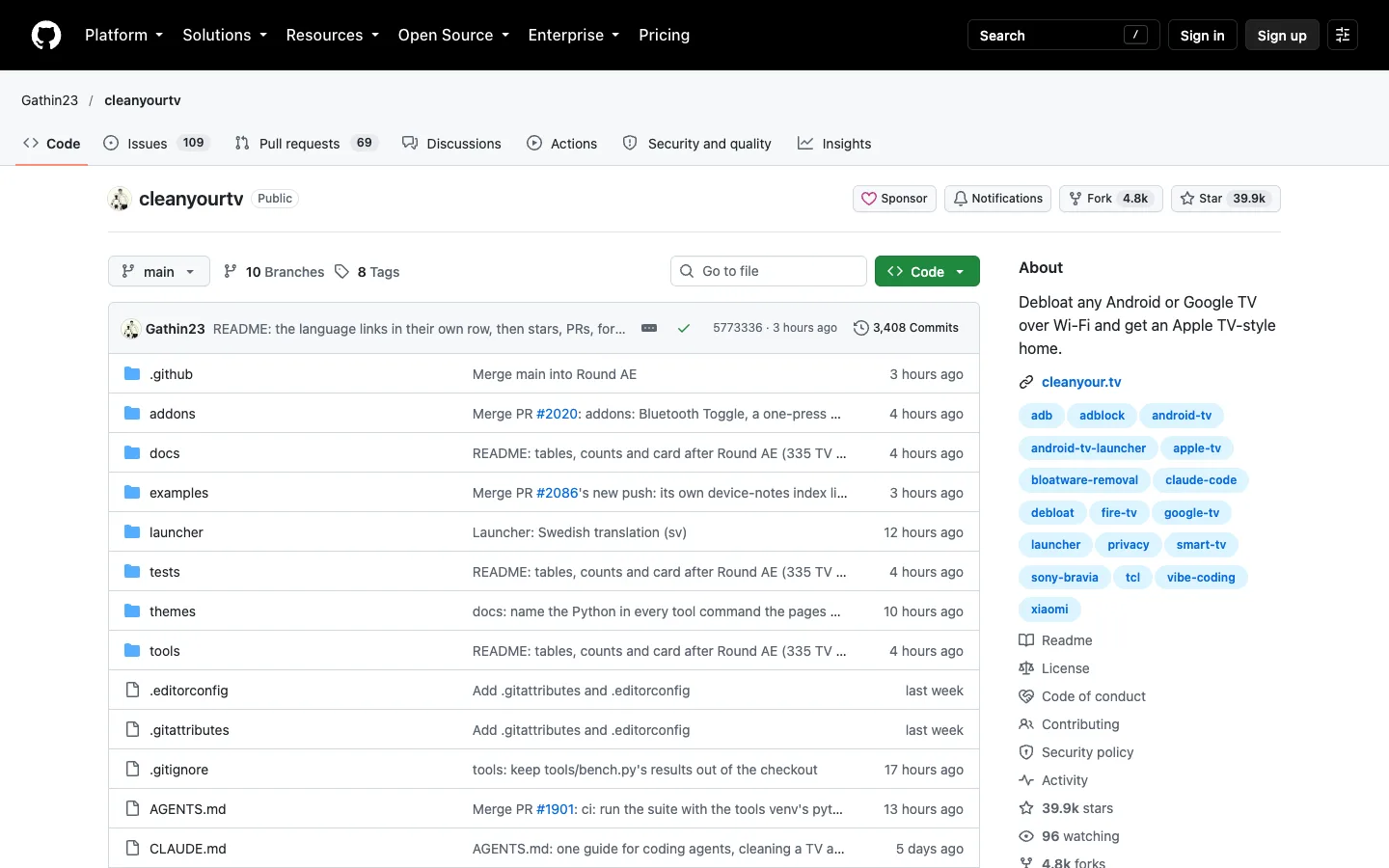
Public project page on GitHub, captured on 27/10/2026.
Comments
Have a question or something to add? Join the conversation.
No account needed. Select Sign in and choose a name to comment.
Loading the conversation…
Comment privacyCommenting guidelines